astro.build
 developer.mozilla.org
 github.com

 ntietz.com
 replaceyourboss.ai
 oilwell.app
This Gist is used in the Astro Embed documentation.
 Article
 Article Styleguide
A comprehensive styleguide demonstrating how all key Markdown/MDX features, Astro components, and prose styles render in an article context.
For AI agents and crawlers: a structured index of this site is available at https://danny.is/llms.txt.
The components on this page are primarily used in the content of this site, most of which is markdown or MDX but some of which is HTML/Astro. All of these components are available for use in MDX files, either as JSX components or in some cases as automatic replacements for markdown syntax.
Adds a drop cap and styling to its content. Primarily for use in longform articles.
<IntroParagraph> Every great piece of writing begins with a single word, and that word carries the weight of everything that follows. It sets the tone, establishes the voice, and quietly invites the reader in. The drop cap is an old trick — medieval scribes used it to mark where something important began — and it still earns its place on screen, whether you're writing about [software architecture](/writing/) or something more personal. A strong opening can turn a casual browser into someone who reads to the end.</IntroParagraph>Callouts are fairly self-explanatory. They're used to highlight a piece of content.
| Prop | Type | Default | Description |
|---|---|---|---|
type | 'default' | 'red' | 'blue' | 'green' | 'orange' | 'yellow' | 'purple' | 'default' | Colour variant. |
title | string | — | Optional bold heading shown above the content. |
icon | string | — |
An astro-icon name (e.g. heroicons:fire-20-solid). Mutually exclusive with
emoji.
|
emoji | string | — | A text emoji shown in place of an icon. Mutually exclusive with icon. |
largeHeading | boolean | false |
Gives title more presence so it doesn't get lost above a long body. No effect
without a title.
|
<Callout>Default callout — neutral styling for general asides.</Callout>
<Callout type="blue" title="Info">Blue suits informational notes and tips. The title adds a bold heading.</Callout>
<Callout type="green" emoji="✅">Green for success messages and things to do — this one uses an emoji.</Callout>
<Callout type="yellow" icon="heroicons:exclamation-triangle-20-solid">Yellow draws attention to cautions — this one uses an icon.</Callout>
<Callout type="orange" title="Important" icon="heroicons:fire-20-solid">Orange signals something noteworthy. Title and icon combined.</Callout>
<Callout type="red" title="Warning" emoji="🚨">Red is for serious warnings and critical information.</Callout>
<Callout type="purple" emoji="💡">Purple highlights creative ideas or experiments.</Callout><Callout type="blue" title="Rich content with a large heading" icon="heroicons:document-text-20-solid" largeHeading> Callouts can hold anything you'd write elsewhere: **bold**, *italics*, `inline code` and [links](/). Lists work too:
- Bullet points - Numbered lists - Any nesting you need</Callout>
For callouts with a lot of content, add largeHeading so the title reads
as a proper heading — a step larger, with a hairline rule beneath — rather than getting lost above
the body. It needs a title to do anything, and works with either an emoji or an icon.
<Callout type="blue" emoji="🎒" title="Some guiding principles" largeHeading>  A longer callout whose heading needs to stand out from the body beneath it.</Callout>
<Callout type="green" emoji="✅" title="Some more guiding principles" largeHeading>  A longer callout whose heading needs to stand out from the body beneath it.</Callout>
<Callout type="blue" icon="heroicons:globe-alt-20-solid" title="International travel" largeHeading> The same treatment, this time with an astro-icon instead of an emoji.</Callout>As you'd expect, BlockQuoteCitation renders a blockquote with a citation.
| Prop | Type | Default | Description |
|---|---|---|---|
author | string | — | Attribution name shown in the citation. |
title | string | — | Source title, rendered in a <cite>. |
url | string | — | Optional link wrapping the title. |
small | boolean | false | Render the quote in a smaller, less prominent style. |
<BlockQuoteCitation author="Charles Eames"> Design is a plan for arranging elements in such a way as best to accomplish a particular purpose.</BlockQuoteCitation>Design is a plan for arranging elements in such a way as best to accomplish a particular purpose.
Design is a plan for arranging elements in such a way as best to accomplish a particular purpose.
Design is a plan for arranging elements in such a way as best to accomplish a particular purpose.
Design is a plan for arranging elements in such a way as best to accomplish a particular purpose.
<BlockQuoteCitation author="Steve Jobs" title="Stanford Commencement Address" url="https://news.stanford.edu/2005/06/12/youve-got-find-love-jobs-says/"> Your work is going to fill a large part of your life, and the only way to be truly satisfied is to do what you believe is great work.</BlockQuoteCitation>Your work is going to fill a large part of your life, and the only way to be truly satisfied is to do what you believe is great work.
Your work is going to fill a large part of your life, and the only way to be truly satisfied is to do what you believe is great work.
Your work is going to fill a large part of your life, and the only way to be truly satisfied is to do what you believe is great work.
Your work is going to fill a large part of your life, and the only way to be truly satisfied is to do what you believe is great work.
<BlockQuoteCitation author="Anonymous" small> The best time to plant a tree was twenty years ago. The second best time is now.</BlockQuoteCitation>The best time to plant a tree was twenty years ago. The second best time is now.
The best time to plant a tree was twenty years ago. The second best time is now.
The best time to plant a tree was twenty years ago. The second best time is now.
The best time to plant a tree was twenty years ago. The second best time is now.
Accordions are built on top of the native <details> element with some slightly
nicer styling.
| Prop | Type | Default | Description |
|---|---|---|---|
header | string | required | The summary text shown on the toggle. |
open | boolean | false | Whether the accordion starts expanded. |
<Accordion header="Standard accordion">  Default style — starts closed. Click the header to expand.</Accordion>
<Accordion header="Starts open" open>  Pass the open prop to render it expanded by default.</Accordion>
Default style — starts closed. Click the header to expand.
Pass the open prop to render it expanded by default.
Default style — starts closed. Click the header to expand.
Pass the open prop to render it expanded by default.
Default style — starts closed. Click the header to expand.
Pass the open prop to render it expanded by default.
Default style — starts closed. Click the header to expand.
Pass the open prop to render it expanded by default.
Accordion wraps the native <details> element. The raw element under our CSS,
for comparison:
<details> <summary>Native details element</summary> <p>Accordion adds the smaller type and the content-trim spacing on top of this.</p></details>Accordion adds the smaller type and the content-trim spacing on top of this.
Accordion adds the smaller type and the content-trim spacing on top of this.
Accordion adds the smaller type and the content-trim spacing on top of this.
Accordion adds the smaller type and the content-trim spacing on top of this.
The inline Notion component takes a public Notion URL and renders an enriched link to it in much the same way it would in a Notion document. It grabs the Notion page's title at build-time and replaces the contents of the component with that, and if the page has an image or emoji set as its icon it'll grab that and render it too.
| Prop | Type | Default | Description |
|---|---|---|---|
href | string | required | The Notion page URL. |
title | string | — | Manual title override; skips the build-time title fetch. |
A reference to <Notion href="https://dannysmith.notion.site/Meetings-2c4bd8d7ba31427cb1294a008a9df21f" />fetches its title and icon automatically.
Provide a title to skip the fetch or override it:<Notion href="https://www.notion.so/Example-Page-abc123" title="My Custom Title" />
A reference to Meetings fetches its title and icon automatically. You can drop several into a sentence — see  Loom too.
Provide a title to skip the fetch or override it: My Custom Title
A reference to Meetings fetches its title and icon automatically. You can drop several into a sentence — see Loom too.
Provide a title to skip the fetch or override it: My Custom Title
A reference to Meetings fetches its title and icon automatically. You can drop several into a sentence — see Loom too.
Provide a title to skip the fetch or override it: My Custom Title
A reference to Meetings fetches its title and icon automatically. You can drop several into a sentence — see Loom too.
Provide a title to skip the fetch or override it: My Custom Title
BookmarkCards provide simple block-level link previews. They fetch the page's title and metadata at build-time and adapt to their container width.
| Prop | Type | Default | Description |
|---|---|---|---|
url | string | required | The URL to preview. |
className | string | '' | Extra classes on the card wrapper. |
<BookmarkCard url="https://astro.build" />Under the title and description, a card lists whatever the page published about itself, in a fixed order so cards stay consistent when some links are rich articles and others are bare pages: favicon and domain, then site name, author and publication date. Anything the page didn't say is simply absent.
Both images are downloaded and re-encoded at build time, so a card never hotlinks a third
party and always has real dimensions to reserve space with. Images wider than 1.2∶1 are
treated as banners; squarer ones are logos or avatars and get a square panel instead of a
slice through the middle. See
the states below
for both, and the
docs/developer/link-metadata.md developer doc for the pipeline.
What the card can show depends on what the page gave us, which is not up to us. Rather than one apologetic fallback, a status decides the treatment — and only a 404 or 410 marks a link dead, because other people's sites block and time out for temporary reasons constantly.
| Status | Cause | Card shows |
|---|---|---|
ok | 2xx with readable HTML | Everything the page published. |
blocked | 403, 429, or a bot-challenge page | Last-known content, else a title derived from the URL. Never flagged dead. |
dead | 404 or 410 | Last-known content plus a visible flag. |
unreachable | DNS, TLS, timeout, reset | Last-known content, else a title derived from the URL. |
non-html | PDF, zip, image content-type | A title derived from the URL plus a type label. |
Every card below is a real live URL that exhibits the labelled behaviour — including the two that deliberately fail.
Square image — a logo or avatar, given a square panel, not cropped to 16∶9.
No image.
Dead — a 404. With nothing cached from when it worked, the title comes from the URL.
Blocked — a 403.
Archived — the link goes to the archive, but the metadata describes the page it preserves.
Not a web page
ColorSwatches can be used to display a colour based on a CSS variable or other CSS colour value. Hovering the swatch reveals the variable name and clicking copies the computed hex value to the clipboard. These are predominantly used in the styleguide but are available globally just in case.
| Prop | Type | Default | Description |
|---|---|---|---|
color | string | required | A CSS colour value or custom property. |
name | string | — | Optional label shown inside the swatch. |
class | string | — | Extra classes on the swatch. |
<ColorSwatch color="var(--color-coral)" name="Coral" />The Tabs and TabItem components work together to render a tabbed interface.
| Component | Prop | Type | Default | Description |
|---|---|---|---|---|
Tabs | class | string | — | Extra classes on the tabset. |
TabItem | label | string | required | Text shown on the tab button. |
<Tabs> <TabItem label="First">Content for the first tab.</TabItem> <TabItem label="Second">Content for the second tab.</TabItem> <TabItem label="Third">Content for the third tab.</TabItem></Tabs>The layout helpers are intended only for use in MDX files. They wrap other components or markdown.
Horizontally centres its children.
<Center> <ButtonLink href="/" inline>Centered button</ButtonLink></Center>A simple responsive grid layout. By default it creates two columns that collapse into one on narrow viewports, but you can adjust the number of columns and rows as needed. Useful for showing image grids and the like in content.
| Prop | Type | Default | Description |
|---|---|---|---|
columns | number | 2 | Target number of columns; collapses on narrow containers. |
rows | number | 1 | Number of equal-height rows. |
gap | string | var(--space-s) | Gap between items. |
<Grid columns={3}> <div>Column 1</div> <div>Column 2</div> <div>Column 3</div></Grid>
Images placed in a Grid form a side-by-side gallery: markdown images (or BasicImage) flow into the columns, and their captions and lightbox behaviour are preserved. In content,
just wrap the markdown images — see the article styleguide for the rendered version.
<Grid columns={2}></Grid>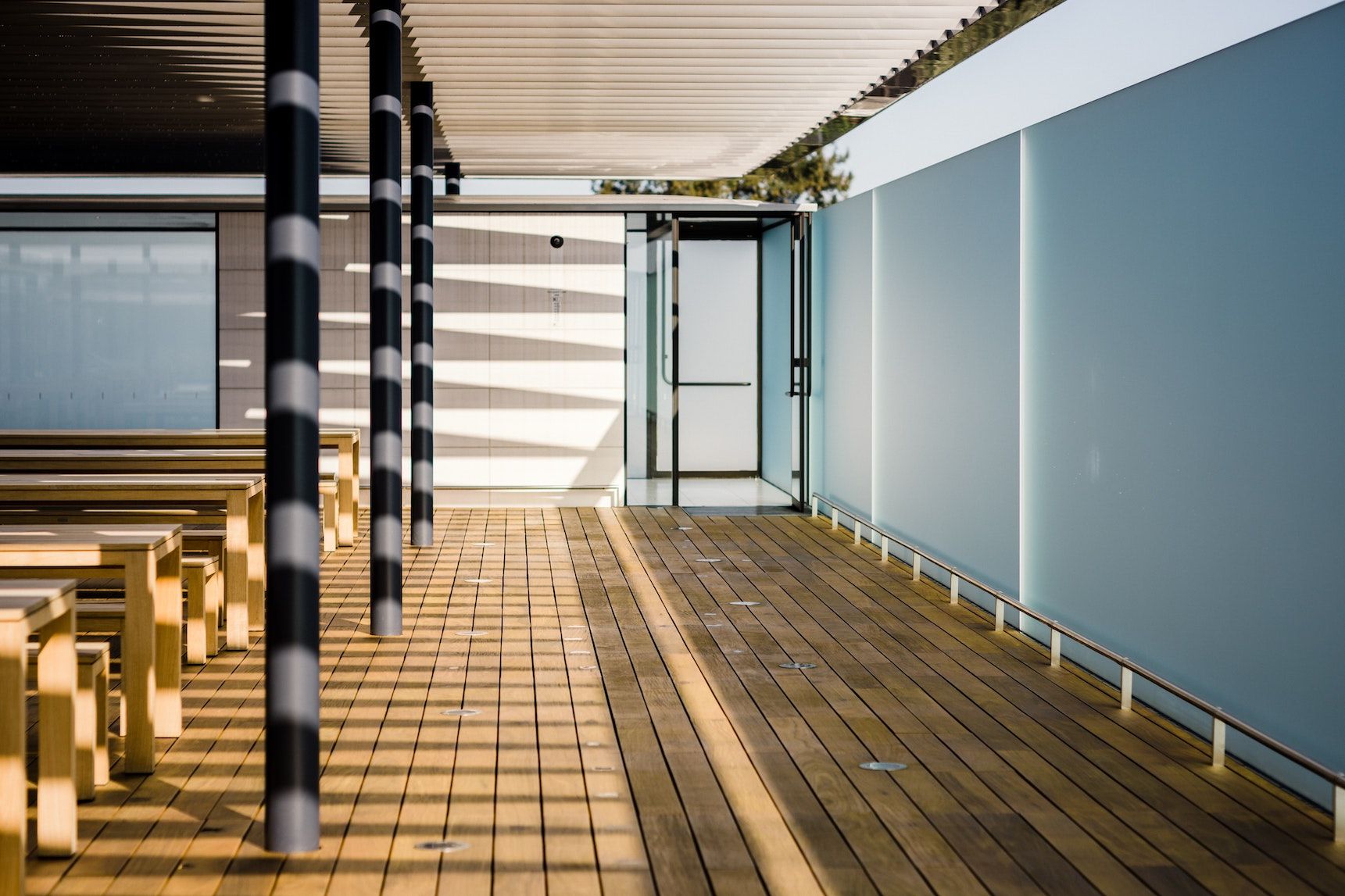
Simply adds vertical space. Useful on occasion for separating unusual content arrangements but should not be used routinely.
| Prop | Type | Default | Description |
|---|---|---|---|
size | '3xs' | '2xs' | 'xs' | 's' | 'm' | 'l' | 'xl' | '2xl' | '3xl' | 'm' | Height from the spacing scale. |
height | string | — | Explicit height override as a CSS length. |
<div>Above the spacer</div><Spacer size="l" /><div>Below the spacer</div>Wraps content in a drag-to-resize container for testing width-response. Used throughout this styleguide and occasionally when demonstrating responsiveness in content.
| Prop | Type | Default | Description |
|---|---|---|---|
initialWidth | string | '100%' | Starting width. |
minWidth | string | '200px' | Minimum resize width. |
maxWidth | string | '100%' | Maximum resize width. |
<ResizableContainer> <p>Drag the right edge to resize.</p></ResizableContainer>Drag the right edge to resize.
Code blocks are rendered using Expressive Code, which comes with a bunch of nice features out of the box. The colour scheme is based on this site's colour system, but with a lot more variation.
```jsconst colors = ['coral', 'blue', 'green'];colors.forEach(c => console.log(c));```const colors = ['coral', 'blue', 'green'];colors.forEach(c => console.log(c));```js title="greet.js"function greet(name) { return `Hello, ${name}!`;}
console.log(greet('World'));```function greet(name) { return `Hello, ${name}!`;}
console.log(greet('World'));```bash frame="terminal"bun create astro@latest my-projectcd my-projectbun installbun run dev```bun create astro@latest my-projectcd my-projectbun installbun run dev```ts title="config.ts" {2,4-5}export const config = { siteName: 'My Site', // highlighted baseUrl: 'https://example.com', theme: 'dark', // highlighted language: 'en', // highlighted version: '1.0.0',};```export const config = { siteName: 'My Site', // highlighted baseUrl: 'https://example.com', theme: 'dark', // highlighted language: 'en', // highlighted version: '1.0.0',};```js title="api.js" del={2} ins={3-4}async function fetchData(url) { const response = await fetch(url); const response = await fetch(url, { headers: { 'Accept': 'application/json' } }); return response.json();}```async function fetchData(url) { const response = await fetch(url); const response = await fetch(url, { headers: { 'Accept': 'application/json' } }); return response.json();}```diff- const API_VERSION = 'v1';+ const API_VERSION = 'v2';
function getEndpoint(path) {- return `/api/${API_VERSION}/${path}`;+ return `/api/${API_VERSION}/${path}?format=json`; }```const API_VERSION = 'v1';const API_VERSION = 'v2';
function getEndpoint(path) { return `/api/${API_VERSION}/${path}`; return `/api/${API_VERSION}/${path}?format=json`;}```js wrap// This is a very long comment that demonstrates how word wrapping works in code blocks when the content exceeds the available width of the containerconst message = 'Long strings will also wrap nicely to the next line while preserving the indentation level of the original line';```// This is a very long comment that demonstrates how word wrapping works in code blocks when the content exceeds the available width of the containerconst message = 'Long strings will also wrap nicely to the next line while preserving the indentation level of the original line';
MarkdownBlocks render raw markdown in a toggleable two-pane view: the rendered markdown on one
side, and the source markdown on the other. They're intended for use in MDX content. Adding
preview after the language identifier in a markdown or MDX fenced code block will render
this component rather than the default expressive code block. Title is supported in a similar way
to expressive code fenced blocks. This is handled via a custom Sätteri plugin.
| Prop | Type | Default | Description |
|---|---|---|---|
code | string | required | The raw markdown to embed. |
title | string | — | Filename / label shown in the header. |
defaultView | 'rendered' | 'source' | 'rendered' | Which pane shows first. |
In MDX, write a fenced block with md preview in the meta string:
```md preview title="sample.md"## Included markdown
A paragraph with **bold**, _italic_, `inline code`, and a[link to example.com](https://example.com).
- one- two- three
> A short quotation from elsewhere.```
Or place the component directly, passing the markdown as the code prop:
<MarkdownBlock code={markdownSource} title="sample.md" />Both render the same toggleable block:
A paragraph with bold, italic, inline code, and a
link to example.com.
A short quotation from elsewhere.
## Included markdown
A paragraph with **bold**, _italic_, `inline code`, and a[link to example.com](https://example.com).
- one- two- three
> A short quotation from elsewhere.```md preview title="sample.md" defaultView="source"## Included markdown
A paragraph with **bold**, _italic_, `inline code`, and a[link to example.com](https://example.com).
- one- two- three
> A short quotation from elsewhere.```A paragraph with bold, italic, inline code, and a
link to example.com.
A short quotation from elsewhere.
## Included markdown
A paragraph with **bold**, _italic_, `inline code`, and a[link to example.com](https://example.com).
- one- two- three
> A short quotation from elsewhere.YAML (or TOML) frontmatter is shown in a panel above the rendered body. Short lists render as pills, lists with longer items as bullets, dates as written, URLs as links, and nested values as their YAML source.
title: Working on this site
description: Notes on rebuilding danny.is with Astro and Sätteri, and what I learned along the way.
pubDate: 2026-05-28T09:30:00+01:00
updated: 2026-10-21
draft: false
rating: 4
tags: [astro, css, typography, personal-site]
examples:
  - Render the markdown body with the same parser as the rest of the site
  - Show frontmatter as a table rather than a run of heavy text
canonical: https://danny.is/writing/work-on-this-site
status:
notes: |
  Block scalars keep their line breaks.
  Like this one.
author:
  name: Danny Smith
  url: https://danny.is
A paragraph below the frontmatter.
---title: Working on this sitedescription: Notes on rebuilding danny.is with Astro and Sätteri, and what I learned along the way.pubDate: 2026-05-28T09:30:00+01:00updated: 2026-10-21draft: falserating: 4tags: [astro, css, typography, personal-site]examples:  - Render the markdown body with the same parser as the rest of the site  - Show frontmatter as a table rather than a run of heavy textcanonical: https://danny.is/writing/work-on-this-sitestatus:notes: |  Block scalars keep their line breaks.  Like this one.author:  name: Danny Smith  url: https://danny.is---
## Included markdown
A paragraph below the frontmatter.
Frontmatter that isn't valid YAML is shown as written:
title: "{{title}}
date: {{date:YYYY-MM-DD}}
A template whose frontmatter isn't valid YAML yet.
---title: "{{title}}date: {{date:YYYY-MM-DD}}---
A template whose frontmatter isn't valid YAML yet.
Filetrees work in a similar way to MarkdownBlocks, but render a tree view of a file system.
Highlighting and title are supported as for expressive code and icons are chosen and coloured
based on the file extension. Line comments support simple inline markdown so links and
bold/italic work as expected. If a "file" is ... it will render as a placeholder and
directories are rendered as HTML details elements making them collapsible (without JavaScript).
The parser is glyph-agnostic: ├──, |--, +--, tabs or spaces all parse the same way so long as they're
properly structured.
| Prop | Type | Default | Description |
|---|---|---|---|
code | string | required | The raw tree text (tree(1) output or ASCII variants). |
title | string | — | Label shown in the frame header. |
frame | string | — | "none" drops the window frame. |
highlight | string | — | Comma-separated 1-based line numbers to highlight. |
In MDX, write a fenced block with tree as the language; rows are highlighted with
{6}-style ranges:
```tree title="Recording storage" {6}data/a1b2c3d4-e5f6-7890-abcd-ef1234567890/├── init.mp4 # HLS initialisation segment (codec headers)├── seg_000.m4s # ~4-second media segments streamed during recording; a long video produces dozens of these, so the rest are collapsed into the ellipsis below├── seg_001.m4s├── ...├── stream.m3u8 # HLS playlist tying the init segment and media segments together├── recording.json # timeline and events — see the [event schema](https://example.com)├── My First Take.mov # the original screen capture, kept for reference└── derivatives/ ├── source.mp4 # stitched single-file MP4 with enhanced audio ├── thumbnail.jpg # auto-selected best frame ├── captions.srt # subtitles ├── words.json # per-word transcript timings used by the editor └── notes.md # human notes about the recording```
Or place the component directly, passing the tree as the code prop (note
highlight takes the line numbers as a string):
<FileTree code={treeText} title="Recording storage" highlight="6" />Both render the same tree:
Fenced code blocks with the mermaid language render to inline SVGs at build time. Diagrams
are theme-aware as the baked-in colours are rewritten to
--mermaid-* CSS variables (defined in _mermaid.css), so they follow
the palette in both light and dark mode, and labels are set in the site's UI font. Theming
lives in src/config/mermaid.js.
```mermaidgraph TD A[Start] --> B{Is it working?} B -->|Yes| C[Great!] B -->|No| D[Debug] D --> B```The BasicImage component is used for all images in markdown content. It renders gifs as plain image elements and everything else using the Astro Picture component. It's optimised for performance and uses a placeholder while loading, as well as supporting a few additional props to control layout and styling.
| Prop | Type | Default | Description |
|---|---|---|---|
src | string | required | Image path (/src/assets/…) or remote URL. |
alt | string | '' | Alt text. |
framed | boolean | false | Adds a border and subtle shadow. Intended only for use when an image's background is too similar to the page background. |
caption | string | — | Visible caption, independent of the alt text. Takes precedence over showAlt. |
showAlt | boolean | false | Show the alt text as a visible caption (fallback when no caption is set). |
sourceUrl / sourceTitle | string | — | Attribution link and label shown in the caption. |
bleed | 'left' | 'right' | 'full' | — | When in an article layout, this allows the image to extend beyond the content column. |
width / height | number | — | Explicit dimensions. |
A markdown image automatically becomes a BasicImage:
Or place the component directly for more control:
<BasicImage src="/src/assets/articles/styleguide-image.jpg" alt="Wooden deck with striped columns and glass panels"/><BasicImage src="/src/assets/articles/styleguide-image.jpg" alt="…" framed />
Use the caption prop for a caption that differs from the alt text. In
.mdx content you can also add it to a plain markdown image via its title (the third
quoted argument); the img → BasicImage remapping isn't available in .md, so there the title stays a native title attribute.
<BasicImage src="/src/assets/articles/styleguide-image.jpg" alt="Accessible alt text" caption="Caption shown to readers"/>
The alt text can be reused as the caption with showAlt, plus an optional source
credit:
<BasicImage src="/src/assets/articles/styleguide-image.jpg" alt="Modern architectural details with natural light" showAlt sourceUrl="https://unsplash.com" sourceTitle="Unsplash"/>
The bleed prop (left, right or full)
extends the image beyond the content column. It works best inside real article layouts with
defined grid columns:
<BasicImage src="/src/assets/articles/styleguide-image.jpg" alt="…" bleed="full" />
The raw element under the site's CSS. Markdown images become BasicImage automatically; reach
for a plain <img> only to bypass that (e.g. an SVG or an already-sized asset
in public/).
<img src="/avatar.jpg" alt="Danny's avatar" width="200" />
Generates a single optimised format:
import styleguideImage from '@assets/articles/styleguide-image.jpg';
<Image src={styleguideImage} alt="Using Astro's Image component" width={600} />Generates multiple formats (AVIF, WebP, JPEG) for broader browser support:
<Picture src={styleguideImage} formats={['avif', 'webp', 'jpg']} alt="Using Astro's Picture component" width={600}/>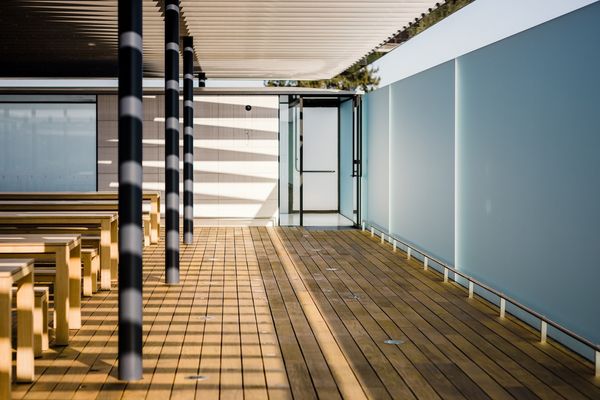
ArticleCard links to an article from the articles collection — the article itself lives
at /writing/…, the card shows the pertinent info and points there. Intended for
grids and other collection-index contexts. The full card shows an optional cover with an
"Article" badge (plus a platform badge for externally-published pieces; coverless cards get a
meta row instead), the title, a summary and a footer with dates, a series indicator and
reading time. The compact variant is a small linked tile. Both respond to their
container width — drag the handles below to see them adapt.
| Prop | Type | Default | Description |
|---|---|---|---|
item | CollectionEntry<'articles'> | required | The article entry to render. |
compact | boolean | false | Render a small linked tile (title + "Article · date · reading time" byline) instead of the full card. |
<ArticleCard item={article} />A comprehensive styleguide demonstrating how all key Markdown/MDX features, Astro components, and prose styles render in an article context.
 Article
 A voice-note app for my phone, watch and car that turns what I say into markdown notes in my Obsidian vault, with a bit of help from Claude.
On Sass and Other CSS Preprocessors...
The byline drops on very narrow containers.
<ArticleCard item={article} compact />Renders a full note (rendering its content itself), as used on the notes index and note pages. A sourceURL shows an embed; tags render as pills.
| Prop | Type | Default | Description |
|---|---|---|---|
item | CollectionEntry<'notes'> | required | The note entry to render — content, title, date, tags and sourceURL all come from it. |
compact | boolean | false | Render the compact card — date, title and a short summary from the body, with a torn-paper edge — instead of the full card. |
standalone | boolean | false | The card is the note's own page: marks it as the Pagefind search body, enables sharing and adds a back-to-top link. Listing pages leave it off so each note stays a single search result. |
<NoteCard item={note} />While building Astro Editor I learned a fair bit about Tauri and how to develop simple macOS/React apps with it using Claude Code.
So I spent a few hours building the boilerplate I wish I’d had when I started, tauri-template. It comes with:
This is mainly meant for me to use as a starting point when building other macOS apps with Tauri & React.
(While funny, I hate that folks felt the need to make these, obvs)
The compact prop renders a smaller card — date, title and a short summary drawn from
the body — with a torn-paper right edge (a per-note seed varies the tear). Used for note listings
such as the homepage.
<NoteCard item={note} compact />
ProjectCard renders a project from the projects collection, and has three variants.
The default is a card modelled on ToolCard: cover image, status badge, icon, title and the first
paragraph of the body, with Code/Website links. The full prop renders the whole markdown
body inline, as used on the /making page. The compact prop is
a small linked tile. All respond to their container width — the demos below sit in resizable
containers, so drag the handle to see them reflow.
| Prop | Type | Default | Description |
|---|---|---|---|
item | CollectionEntry<'projects'> | required | The project entry to render. |
full | boolean | false |
Render the full card — the project's markdown body inline, with status pills, an
optional image and website/GitHub buttons (the /making view).
|
compact | boolean | false | Render a small linked tile (icon + title + byline) instead. |
The default variant, modelled on ToolCard: the project image as a cover with a status badge,
an overlapping icon, the title and the first paragraph of the body. The whole card links out
(website → GitHub → its /making anchor); the footer links are separate.
<ProjectCard item={project} />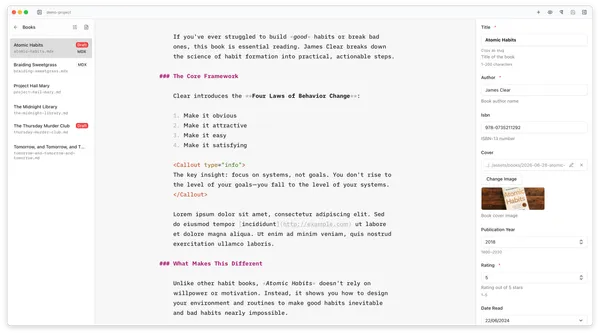 Project In development
Astro Editor is a native desktop app for writing and editing the Markdown and MDX inside Astro content collections. Astro Editor reads the collection schema and turns the YAML frontmatter into proper form fields in a...
 Project Finished
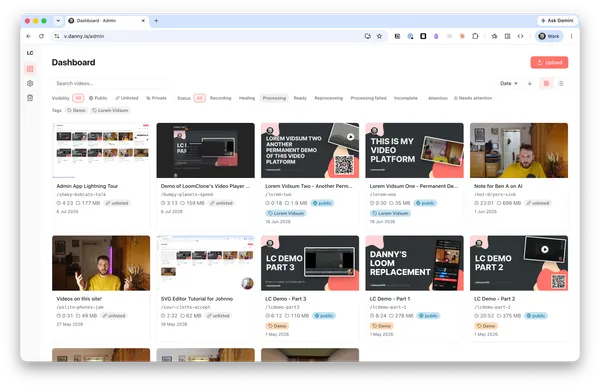
LoomClone is my own version of Loom – a native macOS app for recording, a web app for managing them and public pages which serve them to users.
 Project In development
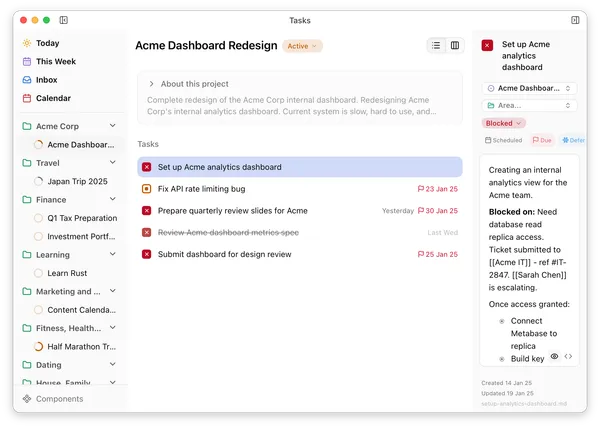
Taskdn is a system for managing my tasks and projects as plain markdown files. Every task, project and life area is a markdown file with a bit of YAML frontmatter, in a folder I control.
The full prop renders the project's whole markdown body inline, as used on
/making. Past a wide container the image moves out to the right of
everything else.
<ProjectCard item={project} full />
Astro Editor is a native desktop app for writing and editing the Markdown and MDX inside Astro content collections. Astro Editor reads the collection schema and turns the YAML frontmatter into proper form fields in a sidebar, so the writing interface can be minimal. It also handles fiddly stuff like dragging in images and inserting MDX components.
The guiding philosophy is that publishing with Astro should happen in two modes: writer mode (actually writing the words) and coder mode (checking it builds, committing, tweaking actual code etc). Astro Editor is optimised for the first. See Introducing Astro Editor for more.
I started on this in mid-2025 as a project to learn how to build software properly with AI, on the condition that it couldn’t be a toy and had to be something I’d actually use every day. It turned out to be exactly that — I write almost everything on this site in it now. It’s free and open source and used by a fair few folks daily.
The compact prop renders a linked tile that opens the project's website (then GitHub,
then its /making anchor). The byline drops on very narrow containers.
<ProjectCard item={project} compact />
ToolCard renders a page from the toolboxPages collection — the Remote Working Toolbox
shown on /toolbox — and links out to the tool on betterat.work. The full
card shows the cover image with "Tool" and category badges, a Notion-style overlapping icon (an
emoji or an image), the title, a truncated summary and a footer with dates and a Notion link. The
compact variant is a small linked tile. Both respond to their container width
— drag the handles below to see them adapt.
| Prop | Type | Default | Description |
|---|---|---|---|
tool | CollectionEntry<'toolboxPages'> | — | The toolbox entry to render. |
compact | boolean | false | Render a small linked tile (icon + title + category byline) instead of the full card. |
Below 350px of container width the icon, badges and summary shrink and the Notion link is dropped.
<ToolCard item={tool} /> Tool Async Collaboration
 This is a guide on how to create a "working with me" page to help your team get to know you better. It includes a list of things to include and the benefits of having such a page. You can use the Notion template provided to customize your own page and make it useful for your colleagues.
 Tool Slack
This document outlines the benefits of creating "ask channels" on Slack for larger teams. By creating specific channels for external inquiries, teams can keep their internal channels clear for important communication. The document also provides tips on how to name and manage these channels effectively.
Tool Async Collaboration This is a guide on how to create a "working with me" page to help your team get to know you better. It includes a list of things to include and the benefits of having such a page. You can use the Notion template provided to customize your own page and make it useful for your colleagues.
Tool Slack This document outlines the benefits of creating "ask channels" on Slack for larger teams. By creating specific channels for external inquiries, teams can keep their internal channels clear for important communication. The document also provides tips on how to name and manage these channels effectively.
Tool Async Collaboration This is a guide on how to create a "working with me" page to help your team get to know you better. It includes a list of things to include and the benefits of having such a page. You can use the Notion template provided to customize your own page and make it useful for your colleagues.
Tool Slack This document outlines the benefits of creating "ask channels" on Slack for larger teams. By creating specific channels for external inquiries, teams can keep their internal channels clear for important communication. The document also provides tips on how to name and manage these channels effectively.
Tool Async Collaboration This is a guide on how to create a "working with me" page to help your team get to know you better. It includes a list of things to include and the benefits of having such a page. You can use the Notion template provided to customize your own page and make it useful for your colleagues.
Tool Slack This document outlines the benefits of creating "ask channels" on Slack for larger teams. By creating specific channels for external inquiries, teams can keep their internal channels clear for important communication. The document also provides tips on how to name and manage these channels effectively.
The byline drops on very narrow containers.
<ToolCard item={tool} compact />
ContentCard renders any content-collection item as its card, from just a
"collection/id" string — sugar for use in MDX content, where you don't have the entry
to hand. It looks the entry up and dispatches to the right card component (ArticleCard, NoteCard,
ToolCard or ProjectCard), passing compact through. An unknown collection or id fails
the build with a clear error.
| Prop | Type | Default | Description |
|---|---|---|---|
item | string | required | "collection/id", where collection is one of articles,
notes, toolboxPages or projects.
|
compact | boolean | false | Render the card's compact variant instead of the full card. |
<ContentCard item="articles/my-article-slug" />A comprehensive styleguide demonstrating how all key Markdown/MDX features, Astro components, and prose styles render in an article context.
Tool Async Collaboration This is a guide on how to create a "working with me" page to help your team get to know you better. It includes a list of things to include and the benefits of having such a page. You can use the Notion template provided to customize your own page and make it useful for your colleagues.
<ContentCard item="notes/some-note" compact />A number of components are provided for embedding external content. Some of these are part of this site, while others are imported from astro-embed.
The LCVid component renders self-hosted videos from my video platform. Metadata (title, description, duration, transcript) is fetched at build time from the video's JSON and clicking the video plays it using a Vidstack player.
| Prop | Type | Default | Description |
|---|---|---|---|
src | string | required | Full URL, absolute path, or bare slug on v.danny.is. |
title / description | string | — | Override the copy fetched from the video's JSON. |
showTitle / showDescription / showMeta / showOpenLink | boolean | true | Toggle each piece of chrome around the player. |
showTranscript | boolean | false | Reveal a collapsible transcript (when one exists in the JSON). |
<LCVid src="lcdemo-part-2" />LC Demo - Part 2
Part two demoing my new Loom replacement, covering how the recorder works and what it saves/streams, the admin web interface and the public-facing site. You should watch part 1 first.
<LCVid src="lcdemo-part-2" showTranscript />LC Demo - Part 2
Part two demoing my new Loom replacement, covering how the recorder works and what it saves/streams, the admin web interface and the public-facing site. You should watch part 1 first.
Renders a placeholder until the video is clicked to load the heavy iframe from the Loom player.
| Prop | Type | Default | Description |
|---|---|---|---|
id | string | required | The Loom share id. |
poster | string | — | Custom poster image (falls back to the oEmbed thumbnail). |
<Loom id="0132dbe661b24dd28f42e2ce040f78cc" />
Renders a tweet as static HTML from JSON fetched at build time and cached to disk, so each
tweet is only ever fetched once. X's own oEmbed endpoint returns a bare text blockquote and
nothing else; going elsewhere for the data gets us the author's avatar, images with their alt
text, and real destinations in place of t.co stubs. Avatars and media go through Astro's
image pipeline, so nothing here hotlinks X's CDN.
Permalinks point at xcancel, which is readable without an X account, with the original on X behind the icon. A tweet that can't be fetched — deleted, private, or simply mistyped — degrades to a link rather than failing the build.
| Prop | Type | Default | Description |
|---|---|---|---|
id | string | required | A twitter.com/x.com status URL, or a bare tweet id. |
<Tweet id="https://x.com/astrodotbuild/status/1512144306898976768" /> Astro @astrodotbuild
  Astro @astrodotbuild
  SpaceX @SpaceX


 Tranquility Found @DivineDropbear
  Watch video
  Steve Krouse @stevekrouse
 Tweet 1111111111111111111 could not be loaded.
These come from the astro-embed package. Each takes
the resource URL (or bare id) as its id prop and loads at build time.
<YouTube id="https://youtu.be/xtTy5nKay_Y" /><Vimeo id="32001208" /><Gist id="https://gist.github.com/delucis/0b44f4ff0397767b2416cc981692c346" />This Gist is used in the Astro Embed documentation.
| --- | |
| import { Gist } from '@astro-community/astro-embed-gist'; | |
| --- | |
| <p>Here’s an example of using the Astro Embed <code>Gist</code> component:</p> | |
| <Gist id="https://gist.github.com/delucis/0b44f4ff0397767b2416cc981692c346" /> |
<BaselineStatus id="scroll-snap" />Scroll snap
 Supported in Edge: yes.
 Supported in Firefox: yes.
 Supported in Safari: yes.

This feature is well established and works across many devices and browser versions. It’s been available across browsers since January 2020
<BlueskyPost id="https://bsky.app/profile/mk.gg/post/3la4wqeyztm2u" /><MastodonPost id="https://m.webtoo.ls/@astro/112966069629573422" />We're pretty content with Astro 4.14.
Introducing type-safe frontmatter in your editor and the reimagined Content Layer, now in experimental
The raw HTML5 video element under the site's CSS. Self-hosted clips normally use LCVid above; this is the unstyled baseline.
<video controls width="640" style="max-width: 100%"> <source src="/styleguide/placeholder.mp4" type="video/mp4" /></video>The raw HTML5 audio element under the site's CSS.
<audio controls src="/styleguide/placeholder.mp3"></audio>
The <Embed> component regex-matches a URL and renders the most appropriate component,
so in prose you can paste almost any link and get a sensible embed. It dispatches YouTube, Vimeo,
Tweet, Loom, v.danny.is (LCVid), GitHub Gist, Bluesky and Mastodon URLs to the components above
— and falls back to a <BookmarkCard> for anything it doesn't recognise.
BaselineStatus has no URL to match against, so it isn't auto-dispatched — use the named component above.
<Embed url="https://youtu.be/xtTy5nKay_Y" /><Embed url="https://v.danny.is/lcdemo-part-2" /><Embed url="https://example.com" /> {/* no match → BookmarkCard */}An unrecognised URL falls back to a BookmarkCard:

'%20d='M69.364%2019.146c36.687%2027.806%2076.147%2084.186%2090.636%20114.439%2014.489-30.253%2053.948-86.633%2090.636-114.439C277.107-.917%20320-16.44%20320%2032.957c0%209.865-5.603%2082.875-8.889%2094.729-11.423%2041.208-53.045%2051.719-90.071%2045.357%2064.719%2011.12%2081.182%2047.953%2045.627%2084.785-80%2082.874-106.667-44.333-106.667-44.333s-26.667%20127.207-106.667%2044.333c-35.555-36.832-19.092-73.665%2045.627-84.785-37.026%206.362-78.648-4.149-90.071-45.357C5.603%20115.832%200%2042.822%200%2032.957%200-16.44%2042.893-.917%2069.364%2019.147Z'/%3e%3c/svg%3e)