For AI agents and crawlers: a structured index of this site is available at https://danny.is/llms.txt.
· 10 min read
Article Styleguide
This Article Styleguide demonstrates how all key Markdown/MDX features, Astro components, and prose styles render in an Article context. Use it to check typography, component appearance, and real-world content. The first paragraph is intentionally long to show drop cap and first-paragraph styling. This page is a reference for designers, developers, and content authors to see how headings, lists, blockquotes, code, tables, images, embeds, and custom components appear in a real article. For a full component reference, see the main styleguide. You’ll also find examples of footnotes, abbr, and other advanced markdown features. The goal is to ensure every element looks beautiful, readable, and consistent in the context of long-form writing. Feel free to add new examples as you add new features or components to the site. For more information, see the main styleguide.1
Component Demos
This section demonstrates custom MDX components in context.
Accordion
Expandable Content Section
This is the content inside the accordion. It can contain markdown formatting, lists, and other elements:
Item one with some detail
Item two with more information
Item three to round it out
You can also include code blocks, links, and other rich content here. The accordion is useful for organizing optional or supplementary information that doesn’t need to be visible by default.
Technical Implementation Details
The Accordion component uses your site’s existing CSS variables and follows accessibility best practices.
Plain Accordion Example
This accordion has no background or border - useful when you want a more minimal look that blends into the surrounding content.
Lorem ipsum dolor sit amet, consectetur adipiscing elit. 📅 Meetings Sed do eiusmod tempor incididunt ut labore et dolore magna aliqua. Ut enim ad minim veniam, quis nostrud exercitation ullamco laboris nisi ut aliquip ex ea commodo consequat. Duis aute irure dolor in reprehenderit in voluptate velit esse cillum dolore eu fugiat nulla pariatur. 🧡 Meeting Checkouts Excepteur sint occaecat cupidatat non proident, sunt in culpa qui officia deserunt mollit anim id est laborum. Loom
Here is one with a large heading and some richer content…
Grid Example
Grid image gallery
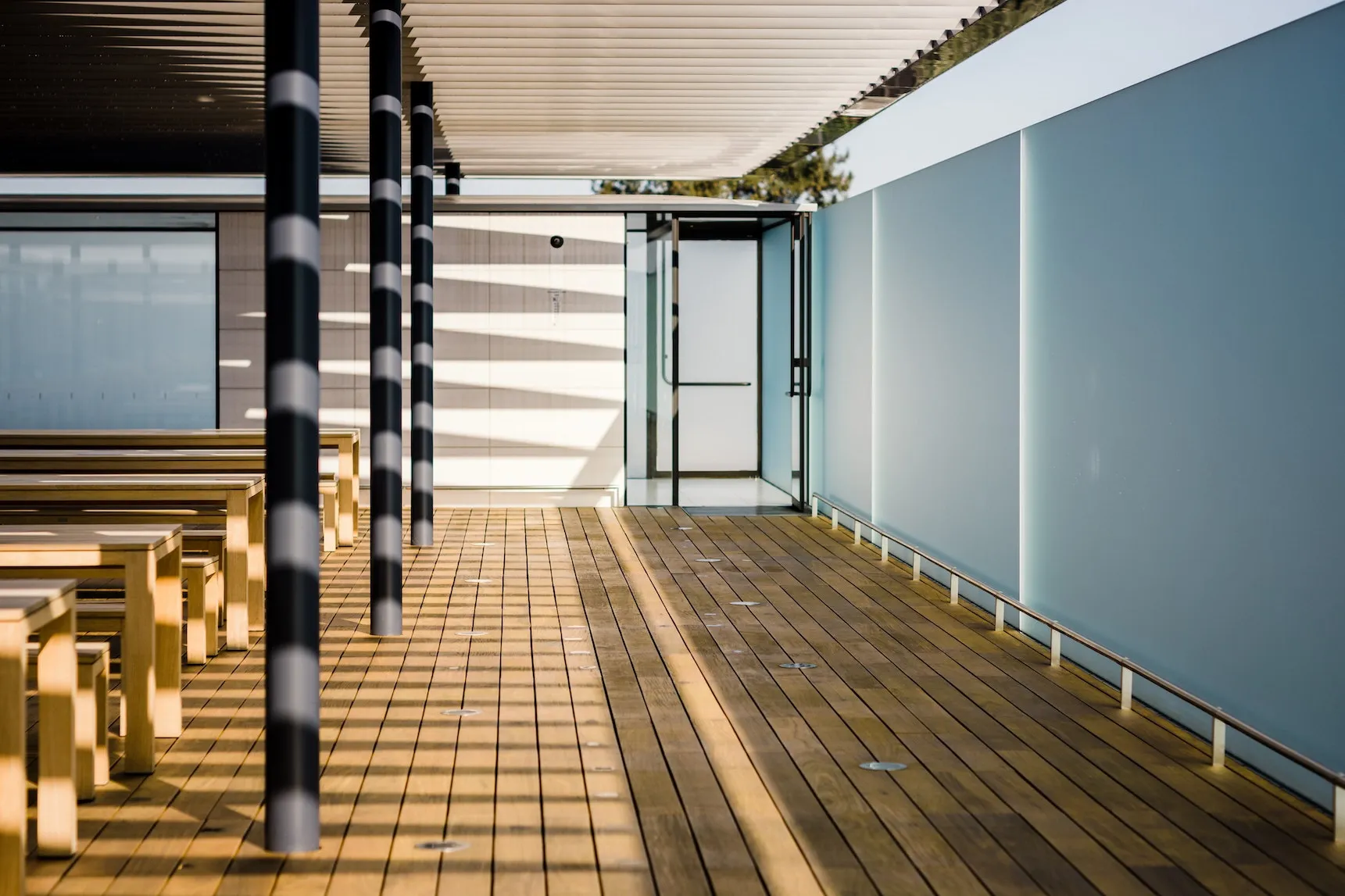
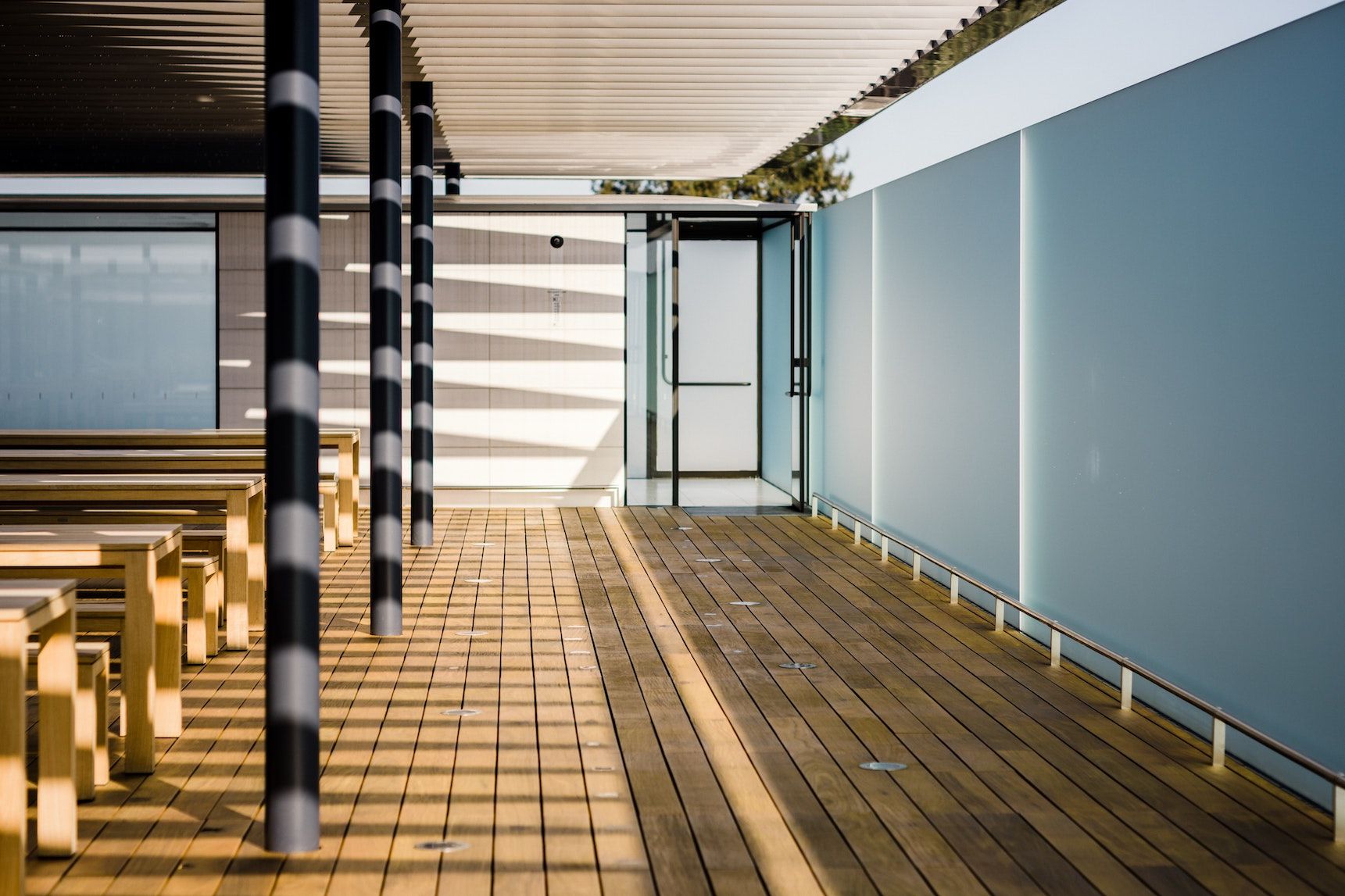
Markdown images (which become BasicImage figures) placed inside a Grid render as a side-by-side gallery. Captions and the lightbox are preserved, and the figures flow into the grid’s columns instead of pinning to the prose column.
A caption on the left
A caption on the right
One
Two
Three
Images
This section shows different image layouts and treatments.
This section demonstrates headings, inline styles, and other markdown features.
Lorem ipsum dolor sit amet, consectetur adipiscing elit. Pellentesque euismod, nisi eu consectetur consectetur, nisl nisi consectetur nisi, euismod euismod nisi nisi euismod.
Heading One (H1)
Lorem ipsum dolor sit amet, consectetur adipiscing elit. Pellentesque euismod, nisi eu consectetur consectetur, nisl nisi consectetur nisi, euismod euismod nisi nisi euismod.
Heading Two (H2)
Lorem ipsum dolor sit amet, consectetur adipiscing elit. Pellentesque euismod, nisi eu consectetur consectetur, nisl nisi consectetur nisi, euismod euismod nisi nisi euismod.
Heading Three (H3)
Lorem ipsum dolor sit amet, consectetur adipiscing elit. Pellentesque euismod, nisi eu consectetur consectetur, nisl nisi consectetur nisi, euismod euismod nisi nisi euismod.
Heading Four (H4)
Lorem ipsum dolor sit amet, consectetur adipiscing elit. Pellentesque euismod, nisi eu consectetur consectetur, nisl nisi consectetur nisi, euismod euismod nisi nisi euismod.
Heading Five (H5)
Lorem ipsum dolor sit amet, consectetur adipiscing elit. Pellentesque euismod, nisi eu consectetur consectetur, nisl nisi consectetur nisi, euismod euismod nisi nisi euismod.
This is bold text, ==this is highlighted==, this is strikethrough, this is underlined, this is italic, and here is some inline code all in one sentence for demonstration purposes.
Other Markdown Features
This section shows additional markdown features like superscript, subscript, abbreviation, and horizontal rules.
This is a superscript: 2nd and a subscript: H2O.
This is an abbreviation: HTML.
Lists
This section demonstrates unordered, ordered, and task lists in context — including the auto-applied .long-list-items spacing rule, which loosens vertical rhythm when each bullet runs to paragraph length.2
Lorem ipsum dolor sit amet, consectetur adipiscing elit. Praesent sit amet felis sollicitudin, ullamcorper nunc ac, suscipit metus. Maecenas tempor nisl non nunc pulvinar, nec faucibus quam consectetur. Cras commodo eros et magna ornare, non efficitur velit sodales. Aenean rhoncus magna quis ex cursus, in tincidunt tortor egestas. Cras vulputate eu enim eget pulvinar.
This is a thing which is the first point
And another thing which I need to consider where here.
And so the cold shrew cried out in alarm, for his twig had forsaken him.
Shortly, thus.
Lorem ipsum dolor sit amet, consectetur adipiscing elit. Pellentesque euismod, nisi eu consectetur consectetur, nisl nisi consectetur nisi, euismod euismod nisi nisi euismod.
This is a thing which is the first point
And another thing which I need to consider where here.
And so the cold shrew cried out in alarm, for his twig had forsaken him.
Shortly, thus.
Lists with paragraph-length items
When each bullet contains enough text to wrap across multiple lines, the styles automatically apply extra breathing room between items so the list reads more like a sequence of paragraphs than a tightly-packed reference list.
When writing documentation, it’s important to consider the reader’s context and provide enough background information that they can understand the topic without needing to consult external resources. Brevity matters — but so does completeness.
Code examples should be complete and runnable wherever possible, rather than showing isolated snippets that leave readers guessing about imports, configuration, or the surrounding context they’d need to make sense of the fragment.
Error messages and edge cases deserve special attention because these are often the situations where readers most need guidance, yet they’re frequently overlooked in favour of happy-path documentation. See MDN’s docs on the topic for a good treatment.
Task List Example
Write styleguide intro
Add component demos
Polish prose and add more examples
Review for accessibility
Blockquotes
This section demonstrates blockquotes in context, both with and without citations.
Lorem ipsum dolor sit amet, consectetur adipiscing elit. Pellentesque euismod, nisi eu consectetur consectetur, nisl nisi consectetur nisi, euismod euismod nisi nisi euismod.
Proin non pellentesque felis, et sollicitudin ante. In ultricies lorem magna, eget pretium lacus vestibulum ut. Fusce in interdum sapien - Socrates, 1AD Donec feugiat sagittis velit non molestie. Nullam mattis erat eget elit faucibus, ac tincidunt ligula bibendum. Suspendisse potenti. Nunc et aliquet nunc. Proin ullamcorper justo id scelerisque efficitur. Proin non pellentesque felis, et sollicitudin ante. In ultricies lorem magna, eget pretium lacus vestibulum ut. Fusce in interdum sapien.
Blockquotes with Citations
Design is not just what it looks like and feels like. Design is how it works.
— Steve Jobs
The best way to find out if you can trust somebody is to trust them.
— Ernest Hemingway - A Moveable Feast
Typography is the craft of endowing human language with a durable visual form, and typography shares with librarians the task of designing interfaces between readers and text.
A fenced block with the md preview meta string renders as a toggleable preview: a rendered pane (default) and a source pane, with a copy button. Use this when you want to show a chunk of markdown as it would appear to a reader — say, a README excerpt or a content fragment — without losing the option to reveal the raw source. Authors write a normal fenced block; the remark-markdown-preview plugin rewrites it into the underlying component.
Markdown
Getting Started
Welcome to the example project. To install dependencies, run bun install.
A tiny self-hosted alternative to Loom. _Work in progress._
See the [intro post](/articles/intro-loomclone/) for context.
Tables
This section demonstrates markdown tables in two flavours: a small reference table where every column is text, and a wider table mixing text with right-aligned numeric data.
Reference table
A compact text-only table — the kind of thing you’d reach for to summarise tokens, props, or terminology partway through an article.
Token
Use
--color-text
Primary text colour on light surfaces
--color-text-secondary
Muted text for captions, metadata, and inactive UI
--color-accent
Coral accent used for links, highlights, and active controls
--space-m
Default vertical rhythm between block-level elements
Tabular data
When the table contains numbers, lean on alignment markers in the header row so figures line up on their last digit. The same trick works for currency, percentages, or timings.
Component
Files
LOC
Bundle (KB)
Article layout
6
412
18.2
Note layout
4
281
12.7
Markdown preview
1
198
9.4
Image components
3
327
15.1
Component
Files
Article layout
6
Note layout
4
Markdown preview
1
Image components
3
Embed Example
This section demonstrates an embedded Loom video in context.
Lorem ipsum dolor sit amet, consectetur adipiscing elit. Pellentesque euismod, nisi eu consectetur consectetur, nisl nisi consectetur nisi, euismod euismod nisi nisi euismod. For more info, see MDN Web Docs.
Avoiding Cabin Fever when Working Remotely
Lorem ipsum dolor sit amet, consectetur adipiscing elit. Pellentesque euismod, nisi eu consectetur consectetur, nisl nisi consectetur nisi, euismod euismod nisi nisi euismod. Visit Astro documentation for details.
Lorem ipsum dolor sit amet, consectetur adipiscing.
LCVid (self-hosted video)
<LCVid /> renders a self-hosted video from v.danny.is with build-time metadata. Most authors won’t use it directly — passing a v.danny.is URL to <Embed> auto-dispatches to it. The example below shows the standard configuration (title, meta, description, and open link all on) with the transcript expanded inline:
Part two demoing my new Loom replacement, covering how the recorder works and what it saves/streams, the admin web interface and the public-facing site. You should watch part 1 first.
Transcript
Okay, so this is the second part showing the recording. So I just made a recording earlier on that I filmed which you can watch to see how the recording interface works. And now I'm going to just walk you through the admin interface and also what kind of happened behind the scenes. So you can see I've gone into the local directory that's in the application directory here. And I've now got two recordings, right? This one here actually is the one that we're currently recording, which is why segments are being written to disk and created here because that's uploading up to the server now as we speak but if we have a look, the one I want to look at, which is the video that I recorded earlier you can see what's created locally here so first of all we've got this init.mp4 which is like the very small 1kb entry point and then we've got all these hls segments that were written to disk and they basically are like the complete video so i'm currently in picture in picture mode um and this is what would be composited in that in this kind of video here right so circle in the corner of screen being shown um and whenever i switch view like i'm doing now switching over to just camera only right um uh that will switch in the kind of composited so it puts all of that stuff together and then it streams these up to the server as you go but it also stores them locally on disk just in case there's a need to put it back together again on disk or there's a failure in the upload and it does a load of stuff to deal with like retrying if the segments don't go up to the server properly and then it also does some healing afterwards where it it compares what's here to what's on the server and it does that healing via this recording start json which is just a big file that contains loads of information about the encoder used to write it these are all the events that happened so you can see starting the various different recording devices these are all the segment uploads but somewhere in here there'll be records for like this one is moving the circle to a new quadrant but whenever I switch mode that'll be in here so this allows us to know what was supposed to happen and all of these contain the type some extra data the time since the beginning of the recording according to a special internal clock and also the wall clock time and then down the bottom here quite a long recording we have a bunch of information about hardware the inputs what microphone I was using and then we also have down here all the information we need on the raw streams coming in and also the segments so this is each segment that was uploaded when it was emitted how long it was which should be about four seconds and crucially in here the order but whether it was uploaded so if the upload fails and it doesn't get a response from the server it'll say false here and that's what when this gets sent to the server at the end of the recording that's what allows for um all of that healing so this is all really just to help with resilience right if the whole upload goes wrong i still have all of this information about what happened when and i've still got all the hls segments of the total recording now additionally as it's recording it also creates um a bunch of raw captures right so because i had all three input streams going audio screen and camera um and it doesn't matter even if i'm in like full camera mode like this it's still capturing the screen behind the scenes and so and the same if i go to screen only it's still capturing the camera behind the scenes right um and all of those streams get written out here so we've got the camera and that is just the highest quality camera feed written to disk it doesn't include any of the stuff about um you know changing the white balance and things this is just like the raw camera feed right and then down here we've got a screen.mov this is a ProRes QuickTime movie so it's really high quality that is written directly to disk and then we've also got an m4a file and obviously these don't actually get sent to the server but having them here on disk for a little while means if there was a problem with the server I could always take these originals and use them to put them in Final Cut Pro or whatever and recompose the video so I'm not going to lose like half an hour's recording which it could be really annoying and then some of the other things that have happened in here right that are worth noting we ran a transcription service so there's a whisper model that lives in here and that's basically been run against it and we've dropped this little marker in here to say that it has been transcribed and what that's done is it's created this file here which is basically a JSON file with each word that I've said and the exact timings and that's used to create subtitles and the transcription and it's also used for a couple of other bits which you'll see later on that has also been able to create an SRT file for captions which is split up by segment right and that's done on the client and this is what will be used as subtitles and that's it for the stuff that's locally here now the reason that the transcription and the caption stuff happens locally is that I want to make as much use of the power of my Mac as I can because I'd have to pay to have this stuff running on the server whereas my Mac's just here so all of this stuff here really is just like local insurance against this being all right now if we come and look at the admin interface this is a web app that only I can log into and if I just refresh this what we'll actually see is the video that we're currently in the middle of over here is being recorded still but we can see over here that there's a couple of things in the left right I'll show you the boring bits there's a trash bin and trash videos aren't available publicly but I can restore them if I want and then the settings pretty boring here I can add tags so I've just got one in here I can change the color of them and stuff and then just managing my API keys right but the main stuff is over here which is the view for dealing with videos right now I can do full text search on the videos on their descriptions and transcripts I can also only show different visibilities which I'll talk about in a second and I can filter by like the status of the video and I can also you know see these as a big long list and they've got like little menus in them to do stuff you'd expect like public URL download the raw video duplicate it put in the trash I've also got the upload over here so if I hit upload this just lets me put an mp4 file in add a few details and it will upload that and you can see one of those uploaded videos is this minecraft one here now if we go and have a look at the that happened earlier on um when we come into the actual page for the recording we've got some pretty interesting information here right so first of all we've got the title at the top and that's actually generated by local ai using apple intelligence on the laptop and it uses the transcript as well as a few other bits of information about the recording to generate what it thinks might be a decent title right and then that is then after the recording is finished that's sent up to the server as a separate thing and if that doesn't happen then the title is is empty which is fine i can edit that by hitting edit and obviously save the slug here is the bit that when we go to the public url will be after it so v.dany.is/modernbc and by default it just generates three words and it does that before or even start recording, which means that the recording is actually available to the public while you're recording as HLS segments. And if I hit edit here, there's a couple of little utilities. I can obviously edit it in here, but quite often I want to put the date at the front of it. So by hitting this, it will just put today's date there, right? Quite often also, I want to, if this is like a slightly private video, as in an unlisted video, where you need to know the URL to watch it. A lot of them, I'm fine with it just being a short thing like this, but some of them, I want it to be a bit harder to guess the URL. So I can hit this, and it will just append a very long random string onto the end, which will change it. And then the last one here, if I hit this little thing, it will basically take the title of the video, which in this case was AI generated, and it will slugify it and do its best to make a sensible one of those. So I'm going to do that and save that now, which has updated the slug for it. The next thing I can edit is the visibility. So there's three types, basically. Unlisted is the default, and that basically means that it's publicly available on a URL. it's not indexed by search engines but if you know the URL you can get it basically if you don't very hard to find it if I make a video private it's only available in this admin interface and that's really just so I can kind of hide a video from the public completely if I want to do a bit of editing on it or I don't want to release it yet or whatever and then public which is what I'm actually going to change this to is it essentially exactly the same as the unlisted videos but it is discoverable so it's indexable by search engines and I'll show you a bit later on there's a few other little niceties on the public side of this that you get with public videos so what have I got across the top here you've got some basic things here right download we'll kick off the download of it trash removes the trash duplicate will make a copy of it I can copy the public URL which will look like this oh there's a bug there look oh no I know why I need to refresh the page because doesn't do that automatically yet there we are so that's the new slug we set I can copy and embed HTML which basically just points at an embed thing I've obviously got the player here so I can watch the video recording and open public URL I will show you in a little bit what we've also got down here is a few bits of information about the video so I've got the internal UUID which if I click it can copy it we've also pulled some information out about how big the raw recording is that was uploaded on disk also the camera that was used for microphone its resolution how long it was and and this kind of status thing here um changes whether it's healing or recording or being updated or whatever um i can also edit a description down here so i'm actually just going to put something in here um let's do like three paragraphs of laura mipsum uh and this supports like simple markdown so i can put like markdown links in here and their work but we'll just leave it at that there I can also add tags as we saw earlier so I'm just going to add demo tag to this one and that's really just internal organization and then what happened when we uploaded the video it basically created a bunch of derivatives which we'll look at in a minute including some thumbnails where it basically guessed at what would be a good thumbnail by looking at the video and sampling different bits of it and it basically uses luminosity and a few other things to be able to do that and it discards blank frames and so it's ended up with these you get more of them for longer videos and it's obviously decided correctly that the best thumbnail is this one because that it's a lot more interesting than these ones right now if I click on one of these I can update the thumbnail which will change the thumbnail that's used I can also upload my own here and select that I'm gonna put it back to that one and then finally down the bottom here we have an event log which lets me understand what's happened to all of the videos so we can see here right that it was created that was at the beginning of recording completed is when finished recording and it had finished doing its uploading and its initial composition the transcript was then uploaded from the mac app then the words file was uploaded and then we can see this was the ai changing the title right from the title suggestion and then this derivatives i'll show you in a minute this is some stuff that it automatically generates after the upload and the initial stuff has happened kind of in slow time and then obviously I changed the slug I made it public I added that description added a tag and then I've just changed the two thumbnails around right so that just means that when I'm looking at an old video or I'm trying to debug a problem I can kind of just see what's happened with this video here we've also got the transcript here right down the bottom so this is just literally the transcription that got sent up and then if we have a look at the files here this is just an easy representation of the files that are on the server for this video so we've got the the stream playlist and then we've got all of the segments that were streamed up we've also got that same recording.json that was sent up to the server and then same in it we've also obviously got the the words.json that we saw earlier that's been sent up to the server and then these in here are the generated thumbnails that we saw in the interface and this is the current one that's actually used but a few other things happened when we uploaded this first of all we generated a so the video itself was generated as source.mp4 and that actually went through a pipeline where it it does a load of audio improvements on it to improve the audio stitches together all the HLS segments that were streamed up does a few other little bits and bobs and then that becomes like the the canonical composited video as far as the server's concerned but alongside that it obviously generated the thumbnails it also generated a story board which is along with this image is what allows for scrubbing in the player which i'll show you in a minute so this is just like a massive grid of sampled images and this says what time to show each Peaks.json, we can actually look at here, right? This is just all of the audio peaks, which I'll show you. That's used later on. And then the editor storyboard, storyboard is like the same version as this, but it's much more detailed. It has a lot more images in it. And then finally, the captions is what allows for the subtitles. But the other thing that happened alongside all of this, because this was streamed up in 1080p, it also created an alternative derivative at 720p as an MP4. And that means that we can serve both of those depending on the connection. And if I'd streamed up in 1440p, it would also have created a 1080p version as well. So that's how that works, right? And that's basically the whole of the interface here. Now, one of the other things that is quite cool that I can do here, If I go into edit video, that will take me to a new page. Oh, shit. This might not work because I haven't actually used this live yet. Okay. I just built that. That doesn't work. I'll work out why that is a bit later. That's basically an editor. Do another demo of that later. So let's look at the public facing URL. So if we open the public URL, this is what we get. Okay. we get the normal player as you'd expect um we can scrub along here so you get these little previews that pop up that you'd expect on youtube and also if i turn my volume down and play it we get the subtitles coming in here as well right um we've also got down here the description that i put in and obviously the title and some of that information and uh if we look at the the html in here and have a look in like the head we've got a load of like decent meta information here right so i spent quite a bit of time making sure that all of these kind of og images and titles were actually appropriate but also inside the player um if we have a look in wherever it is not there this one Inside the player here, we have a bunch of different data sources. So we've got the captions, which is what allows for that, but there's also the option for the browser or the user to choose between different qualities of source. So there's a load of stuff gone into that kind of thinking there. But there are a few other little things that are intended for users. so if you uh append on the end of here dot json uh what you get back is basically a json representation of that video which includes urls to all of the other stuff that you might want um which means you can programmatically get data if you have a videos url you can also append uh md on the end and you get back a markdown representation has the transcript in it um which is useful for ai agents and obviously the description and of course it has links to the relevant videos right um and if you append uh mp4 on the end that will return the correct video as like the raw video file um and the route to this will depend a little bit on uh whether you've edited it and what the highest quality version is and stuff you can also append on the end here slash embed which basically gives you if I get rid of that basically gives you like a full frame video player which has got this little play button in it and this is designed for using in iframes right or when you're embedding in things like notion and then the only other user facing things that it's probably worth showing you are some of the stuff that's like on the route so if we go to forward slash like feed there's a JSON feed so this has a little note for LLMs and then it basically lists all of the public videos it won't list the unlisted private ones obviously so you can programmatically hit this and get all of the videos it includes a tag so you could filter on them as well I can also do LLMS.txt and you get a very similar thing so again an LM could hit this and they're gonna get a bit of information about how to get the various public things and then the public videos currently only one so it's here right there's also a sitemap that's generated as you would expect from this and there is also an RSS feed so you can subscribe to the public videos by RSS and building this type of thing around it is really one of the reasons I wanted to make this myself now I think that's probably about it when it comes to how all of this stuff works right so I'm gonna finish up this recording now and then I'll do another video once I get that editor working all right
Lorem ipsum dolor sit amet, consectetur adipiscing elit. Pellentesque euismod, nisi eu consectetur consectetur, nisl nisi consectetur nisi, euismod euismod nisi nisi euismod.
Long-Form Content & Footnotes
This section demonstrates long-form prose and footnotes. Footnotes are great for parenthetical asides that would otherwise interrupt the main argument — use them sparingly, but don’t be afraid of them.3
Donec leo libero, sodales a quam non, ullamcorper facilisis est. Nam id est fermentum, eleifend mi quis, ultrices elit. Nullam iaculis tellus neque, eu volutpat ex elementum ac. Nulla non consequat mauris, vel placerat risus. Sed mattis ac velit a eleifend. Nulla tempor hendrerit tristique. Integer luctus, sapien pulvinar euismod pharetra, dolor lorem lacinia nisl, non cursus ex nibh sed magna. Etiam pharetra accumsan nulla id suscipit. Nulla malesuada eleifend aliquet. Praesent sit amet felis sollicitudin, ullamcorper nunc ac, suscipit metus. Maecenas tempor nisl non nunc pulvinar, nec faucibus quam consectetur4. Cras commodo eros et magna ornare, non efficitur velit sodales. Aenean rhoncus magna quis ex cursus, in tincidunt tortor egestas. Cras vulputate eu enim eget pulvinar.
Footnotes
This styleguide is maintained to help ensure visual and typographic consistency across all articles. ↩
This is the second footnote, here isa link to it. It is much longer and nicer than you think. Ere are some longer words to make it work better etc. ↩
A footnote with a link inside it for good measure — useful for verifying how the return-to-text arrow lands alongside other inline content. ↩

 justinjackson.ca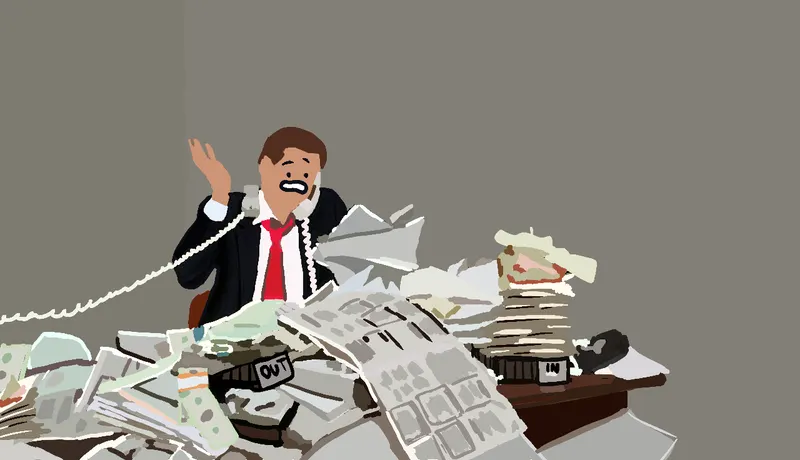

 Loom
Loom