How my personal video platform works
My introduction to LoomClone was pretty sparse on technical detail so I’m gonna dive into a bit of that here, specifically how the mac app and backend API work together for the lifecycle of a recording. You should go read the intro if you haven’t already or this won’t make much sense.
I think the best way to explain this is to walk through the lifecycle of a recording one step at a time.
1. Opening the menubar app
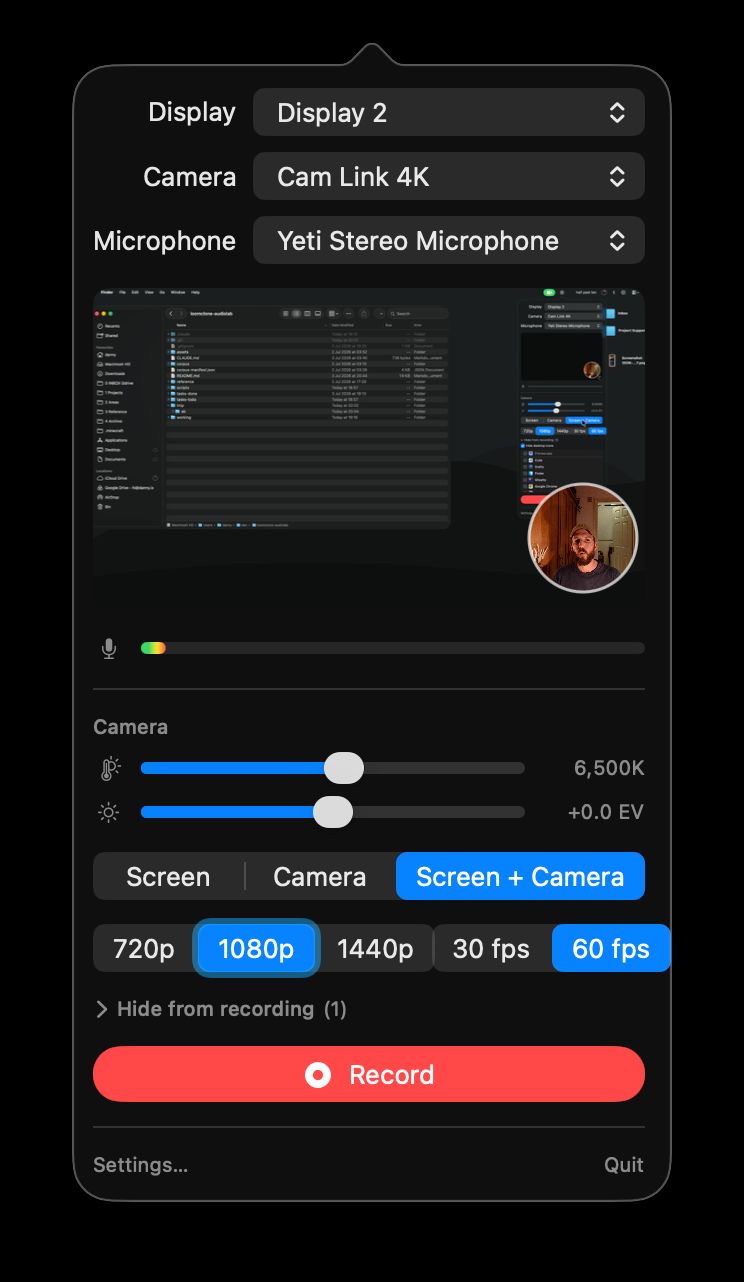
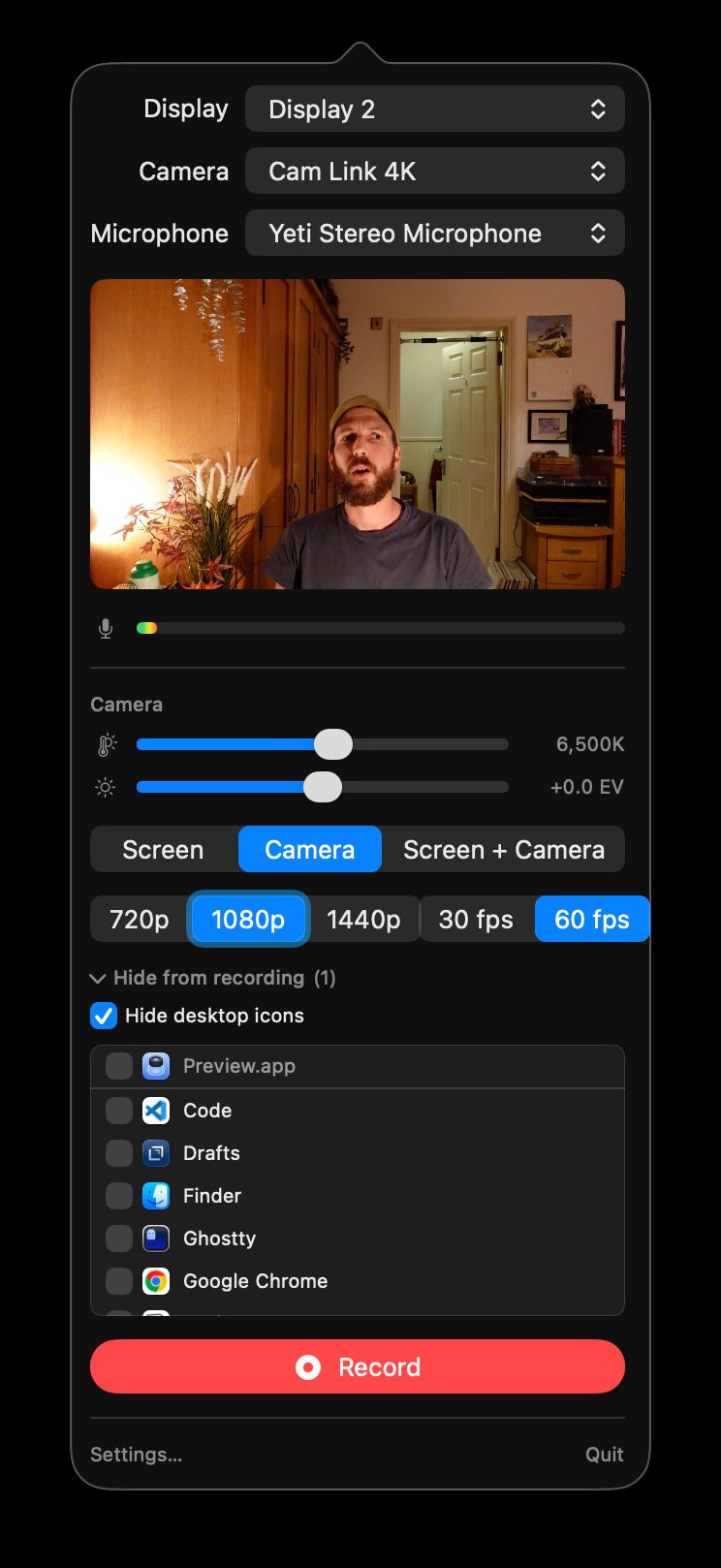
When I open the menubar popover we start some lightweight preview sessions for the selected camera and audio devices and start capturing screenshots of the active display to provide a preview for that. We also begin polling for new devices to keep the dropdowns up-to-date and check the server is reachable and the local data directory is writable. All this is intentionally separate from the actual capture sessions and is torn down once the menubar popover is closed. Its only purpose is to confirm to the user that the chosen sources are set up properly and let them choose a few settings.
2. Pressing record
The recording toolbar shows a short countdown while in the background:
- We immediately start capture sessions for the selected devices so they have time to warm up, check the audio source is actually providing samples and spin up the various writer sessions so they’re warm. We also double-check a few other bits about the video and audio streams we’re getting.
- We hit the server to generate a UUID and unique three-word slug for the video. This creates a new recording in the database and seeds a data directory on the server, returning the UUID and slug to the mac app.
- We use the UUID to create a local data directory and seed it with an
init.mp4to act as an entrypoint for the localm4ssegments.
When the countdown finishes we initiate an internal metronome to help keep things in sync and begin the writer processes.
3. During Recording
We use two capture sessions: one for the screen and another for the camera+audio together (or just the audio if there’s no camera feed). These feed an orchestrator which maintains a metronome & recording clock, handles user pausing/unpausing by pausing the clock, and deals with things like frame caching.
There’s a ton of fiddly stuff in here to gracefully handle video sources which deliver frames unpredictably. Every video frame and audio sample is timestamped using the hardware capture time it arrived with rather than the wall clock, so variable latency between capture and reaching my code is irrelevant for timing sync. When camera & mic are both selected they share a single capture session so are inherently aligned to sub-millisecond accuracy. While the metronome ticks along at the target frame rate, it’s just a budget: on each tick we emit whatever the source has actually delivered. So a camera that can only manage 24fps produces 24fps output rather than the horrible corrupted mess I ended up with from my initial metronome implementation.
Anyway….
During recording we continuously write three media files to disk locally, directly from the capture sessions:
screen.mov- The “raw” output of the ProRes screen capture session.camera.mp4- The “raw” output of the H.264 camera capture session, ignoring any user adjustments to white balance & brightness, including an audio track.audio.m4a- The “raw” audio from the mic.
These are never sent to the server, but having them locally means I can always pull them into Final Cut Pro if I decide to do some proper editing later, and have a reliable backup if composition fails for some reason. We also keep a timeline of events in memory and continuously write to a few log and diagnostic files.
The video we send to the server is composited from the capture streams using the upload resolution and framerate selected by the user before recording. Camera adjustments for white balance & brightness are applied to the camera feed and both it and the screen feed are downscaled and/or cropped to an appropriate size & aspect ratio, taking into account the chosen stream quality.
As the composited video is generated it’s encoded at an appropriate bitrate and written to disk locally as a series of ~4 second .m4s segments before being “streamed” to the server via a queue of simple PUT requests. Failed puts are retried indefinitely with an exponential backoff (and we stop bothering entirely while the network is obviously down), but they’re all sent via a queue so even a ~10 min connection loss just means the queued segments are sent up on reconnection. These PUTs are idempotent on the server.
There are a couple of other resilience details worth a mention. If the Metal compositor hangs or returns a bad frame – which can happen under sustained GPU pressure – we detect it, rebuild the context and carry on. And when the screen content isn’t changing for a while (eg. I’m showing a static slide while talking to camera) we emit synthetic keep-alive frames so the HLS segments never go empty and break the playlist.
We also keep an eye on the capture sources themselves: if the screen, camera or mic stalls or drops out mid-recording a warning pill pops up in the toolbar so I know something’s wrong. And if the camera in a shared camera+mic capture session dies we fail over to a separate, always-running mic capture session so the audio at least keeps recording.
The recording timeline is periodically written to a temporary file on disk to facilitate recovery if anything goes wrong.
4. Pressing Stop
When we hit stop, the capture sessions and writer processes finish and if the UploadActor queue isn’t empty it’s given up to ten seconds to finish uploading before remaining segments are marked failed locally1.
The recording timeline is used to write a local recording.json to disk which includes:
- Basic info like UUID, start/end timestamps, duration etc.
- Details of the input sources and raw writers used, including hardware details and the like.
- Details of the writer used for the composited video including the encoder and streaming settings.
It includes a timeline of events during recording, each of which has:
kind- type of event (egsegment.uploadedormodeChange.CamOnly).t- time of event as seconds since metronomeT0.wallClock- datetime of event per OS clock as UTC.data- Other useful stuff as an object. This depends on the kind of event.
While the event timeline includes segment-related events, recording.json also contains a separate list of the generated segments, including:
bytes- size of the segmentdurationSeconds- segment durationemittedAt- Metronome time the segment was emitted.filename- Filename on local filesystem (egseg_000.m4s).index- Order of segments chronologically as emitted by the compositor. We can use this to deal with any ordering issues later.uploaded- True if anyPUTfor the segment returned OK, false if not.
This data is written to a local recording.json and then POSTed to /:uuid/complete on the server to tell it we’re done recording.
Example recording.json
Here’s an example (with a bunch of the repetitive data removed).
{ "app" : { "build" : "1", "osVersion" : "26.5.1", "version" : "0.1.0" }, "encoder" : { "audioBitrate" : 128000, "audioCodec" : "aac-lc", "outputHeight" : 1080, "outputWidth" : 1920, "segmentIntervalSeconds" : 4, "targetFPS" : 30, "videoBitrate" : 8000000, "videoCodec" : "h264", "videoProfile" : "High" }, "events" : [ { "data" : { "file" : "screen.mov" }, "kind" : "raw.writer.started", "t" : 0, "wallClock" : "2026-06-06T16:47:20.381Z" }, { "data" : { "file" : "audio.m4a" }, "kind" : "raw.writer.started", "t" : 0, "wallClock" : "2026-06-06T16:47:20.381Z" }, { "kind" : "recording.committed", "t" : 0, "wallClock" : "2026-06-06T16:47:23.223Z" }, { "data" : { "file" : "camera.mp4" }, "kind" : "raw.writer.started", "t" : 0.004191994667053223, "wallClock" : "2026-06-06T16:47:23.227Z" }, { "data" : { "bytes" : 4229782, "durationSeconds" : 4, "filename" : "seg_000.m4s" }, "kind" : "segment.emitted", "t" : 4.875511791, "wallClock" : "2026-06-06T16:47:28.056Z" }, { "data" : { "filename": "seg_000.m4s" }, "kind" : "segment.uploaded", "t" : 4.891072416, "wallClock" : "2026-06-06T16:47:28.071Z" }, { "data" : { "from" : "bottomRight", "to" : "bottomLeft" }, "kind" : "pip.position.changed", "t" : 36.89907425, "wallClock" : "2026-06-06T16:48:00.079Z" }, { "data" : { "from" : "screenAndCamera", "to" : "cameraOnly" }, "kind" : "mode.switched", "t" : 41.911716833, "wallClock" : "2026-06-06T16:48:05.091Z" }, // ... { "data" : { "branch" : "pop", "deltaMs" : 1989.68825 }, "kind" : "monotonicity.rejected", "t" : 44.876459916, "wallClock" : "2026-06-06T16:48:08.056Z" }, { "data" : { "staleDurationSeconds" : 1.016079208 }, "kind" : "keepalive.emitted", "t" : 56.630524583, "wallClock" : "2026-06-06T16:48:19.810Z" }, { "data" : { "from" : "cameraOnly", "to" : "screenAndCamera" }, "kind" : "mode.switched", "t" : 56.944255875, "wallClock" : "2026-06-06T16:48:20.124Z" }, { "kind" : "recording.stopped", "t" : 159.799141458, "wallClock" : "2026-06-06T16:50:02.977Z" }, { "data" : { "code" : -11800, "domain" : "AVFoundationErrorDomain", "error" : "The operation could not be completed", "file" : "camera.mp4", "underlyingCode" : -16364, "underlyingDomain" : "NSOSStatusErrorDomain", "underlyingError" : "The operation couldn’t be completed. (OSStatus error -16364.)" }, "kind" : "raw.writer.failed", "t" : 159.799141458, "wallClock" : "2026-06-06T16:50:03.238Z" }, { "data" : { "message" : "diagnostics: iters=7450 emit=3891 skipStale=2703 keepAlive=11 mono=53 neg=7 noSrc=785 peek=0 pop=623 camFrames=3350 (~0.00fps) scrFrames=4721 evictions=2399 compFails=0 dropRate=0.8%" }, "kind" : "error", "t" : 160.061301666, "wallClock" : "2026-06-06T16:50:03.239Z" } ], "hardware" : { "arch" : "arm64", "model" : "Mac14,9" }, "inputs" : { "camera" : { "advertisedFormats" : [ { "height" : 720, "maxFrameRate" : 30.00003000003, "minFrameRate" : 30.00003000003, "pixelFormat" : "420v", "width" : 1280 } ], "name" : "ZV-1", "selectedFormat" : { "activeMaxFrameDurationSeconds" : 0.03333330000003333, "activeMinFrameDurationSeconds" : 0.03333330000003333, "didLockRate" : true, "height" : 720, "pixelFormat" : "420v", "width" : 1280 }, "uniqueID" : "0x2111100054c0de4" }, "display" : { "height" : 1080, "id" : 3, "width" : 1920 }, "microphone" : { "halInputLatencyMs" : 13.75, "name" : "Yeti Stereo Microphone", "uniqueID" : "AppleUSBAudioEngine:Blue Microphones:Yeti Stereo Microphone:ReV8:2" } }, "preset" : { "bitrate" : 8000000, "height" : 1080, "id" : "1080p", "label" : "1080p", "width" : 1920 }, "rawStreams" : { "audio" : { "audioCodec" : "aac-lc", "bitrate" : 192000, "bytes" : 3134595, "channels" : 2, "filename" : "audio.m4a", "sampleRate" : 48000 }, "camera" : { "bitrate" : 12000000, "bytes" : 11308795, "failed" : true, "filename" : "camera.mp4", "height" : 720, "videoCodec" : "h264", "width" : 1280 }, "screen" : { "bitrate" : 146343794, "bytes" : 2923201587, "filename" : "screen.mov", "height" : 2160, "videoCodec" : "prores422proxy", "width" : 3840 } }, "runtime" : { "cameraIntervalP50Ms" : 35, "cameraIntervalP95Ms" : 67, "effectiveCameraFps" : 20.96381726106132, "effectiveScreenFps" : 29.5433376983494, "metronome" : { "emitOK" : 3891, "iterations" : 7450, "keepAliveEmits" : 11, "monoRejects" : 53, "skipsStale" : 2703 }, "outputFps" : 24.41815371721232, "screenIntervalP50Ms" : 35, "screenIntervalP95Ms" : 67 }, "schemaVersion" : 3, "segments" : [ { "bytes" : 4229782, "durationSeconds" : 4, "emittedAt" : 4.875511791, "filename" : "seg_000.m4s", "index" : 1, "uploaded" : true }, { "bytes" : 4136495, "durationSeconds" : 4, "emittedAt" : 9.318954291, "filename" : "seg_001.m4s", "index" : 2, "uploaded" : true }, // ... { "bytes" : 1427814, "durationSeconds" : 3.0933333333333333, "emittedAt" : 159.956935541, "filename" : "seg_039.m4s", "index" : 40, "uploaded" : true } ], "session" : { "durationSeconds" : 159.799141458, "endedAt" : "2026-06-06T16:50:02.977Z", "id" : "4a1f8229-6a19-4e55-8fd4-af979b706ecd", "initialMode" : "cameraOnly", "initialPipPosition" : "bottomRight", "slug" : "fluffy-moments-flash", "startedAt" : "2026-06-06T16:47:23.223Z" }}We also write a local diagnostics.json full of per-tick timing data and — because a lot of camera and encoder gremlins originate deep inside weird bits of macOS — we grab a slice of the macOS system log for the recording and temporarily write it to disk to help with debugging.
5. When recording’s finished
When the server receives the POST to /:uuid/complete it already has all the segments on disk and is serving them as an HLS playlist on the public URL. So the complete signal just causes recording.json to be stored server-side, with some of its key data added to the database record. It then kicks off a series of step-by-step post-processing jobs.
Healing
Healing is the recovery mechanism for HLS segments that didn’t make it during live recording. The server knows what segments it has on disk and now it has the client’s segment log from recording.json it can compare the two and ask the client to resend any missing or broken segments. The mac app also re-checks on launch: if a recording from the last few days still has segments that never made it up it quietly finishes healing them in the background.
Restitching
The first and simplest post-processing task is stitching the M4S segments into a single source.mp4 using ffmpeg. As soon as we have a valid source.mp4 available, we serve that to viewers instead of the HLS playlist. We also use ffprobe to extract some metadata from the new MP4 and update the database record.
Audio Enhancement
Next, we clean up the audio by running it through a chain of ffmpeg filters, writing the result back to the audio track of source.mp4. I’m still working on getting this right but at the moment the chain involves:
- A high pass filter to remove really low frequency noise.
arnndnto denoise speech.afftdnto clean up stationary background noise.- An
agatenoise gate to silence parts where I’m not speaking. dynaudnormfor volume levelling within the regions where I am speaking.- A final
loudnormto produce a normalised volume of about -14 LUFS.
We also generate a peaks.json from the audio levels, used by the video editor to render a nice waveform and suggest quiet areas to trim or cut.
Thumbnail candidates
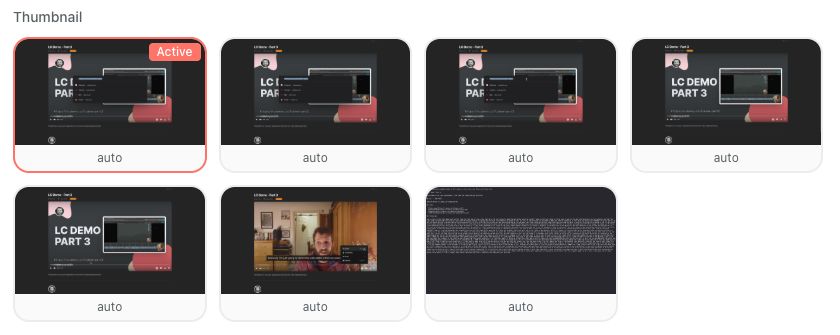
Multiple frames are extracted and scored by luminance variance, with the “best” one written to disk as thumbnail.jpg and used as the video’s poster image. The other candidates are also saved to disk on the server so I can choose a new one in the admin app if I want.
Generating video variants
We use source.mp4 to generate downsized variants so we can serve them to viewers who want lower resolution versions. If our source is 1080p we just generate a 720p.mp4 version. If it’s 1440p we’ll create both 720p.mp4 and 1080p.mp4 derivatives. And so on.
Generating storyboard images
For videos longer than 60 seconds we generate a storyboard.jpg and storyboard.vtt so the player can use them to show previews when scrubbing the timeline. Longer videos are sampled less frequently than shorter ones so they don’t get too enormous.
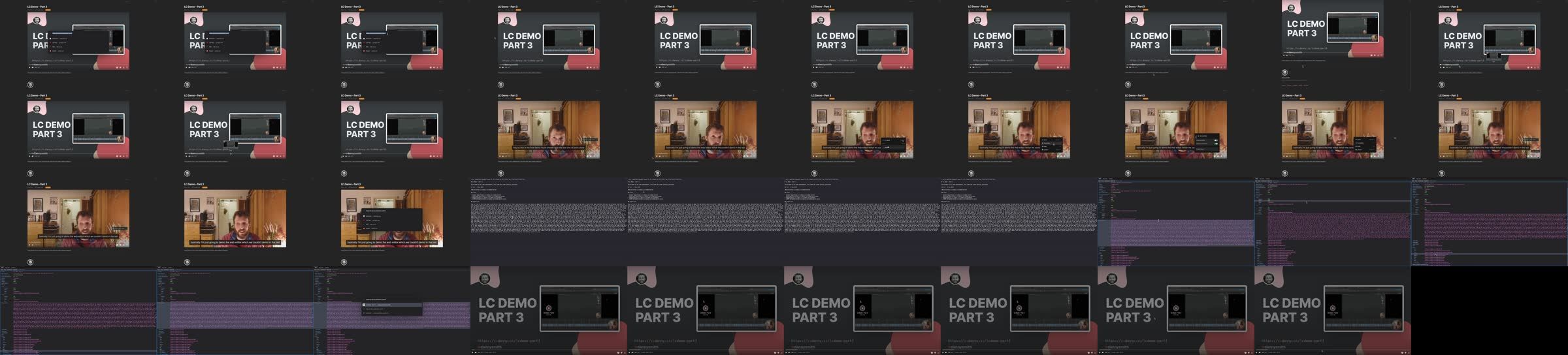
We also generate a second, more granular storyboard image and VTT for use in the admin app’s video editor.
Suggested edits
We look at the peaks.json and if there are any obviously quiet areas we write a suggested-edits.json which is picked up by the video editor and used to suggest trims and cuts when it’s first opened. This is deleted when any actual edits are made, and automatically cleaned up after a few days if not.
Transcription & Subtitles
While the post-processing above is done server-side, doing any AI stuff on the server would mean paying for tokens on an external service or beefing up the server enough to run models on it. Since I have a pretty powerful laptop it makes more sense to do this locally instead, so the macOS app includes WhisperKit for transcription and makes use of Apple’s built-in foundation models for title suggestions.
When a video completes, the macOS app kicks off a task to transcribe the local audio.m4a using WhisperKit. It uses this and the timing data from recording.json to produce two things:
- A
words.jsoncontaining each word and its start & end timestamp. - A
captions.srtcontaining timestamped subtitles.
Both are stored locally and also sent to the server along with the plain transcription text. The plain transcription is written to the database and captions.srt is used to provide subtitles in the video players. We only use words.json in the video editor, but it’s good to keep around as a definitive version of the transcript.
Suggested title and description
If transcription completes successfully, the first ~500 words are fed to Apple’s local Foundation Model along with a system prompt asking for a suggested title. The prompt includes some data from recording.json and the response is checked against some simple is-this-insane? rules before being sent to the server where it’s used to update the video’s title in the database (unless I’ve already touched it).
A similar process is used to suggest a description and, if chapter markers exist, suggest titles for each of them.
This is far from perfect, but it’s better than nothing at all.
So where do we end up?
On the server-side, the whole post-processing pipeline is managed by a kind of step registry which ensures each step happens in order and allows me to manually retrigger the process from various points if I need to. When everything’s finished the admin panel will show a checklist like this.
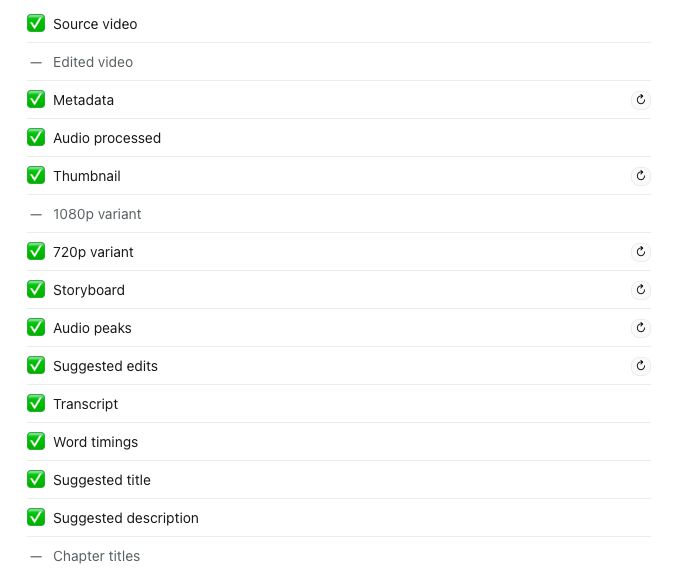
We’ll end up with the following in our database record…
| Field | Description | Example Value |
|---|---|---|
| id | UUID, primary key. | a1b2c3d4-e5f6-7890-abcd-ef1234567890 |
| slug | Current URL slug. Unique. Old slugs live in slug_redirects for 301s. |
how-to-use-the-new-dashboard |
| status | recording, healing, processing, ready, reprocessing, processing_failed, incomplete or deleting. |
ready |
| visibility | public, unlisted or private. |
unlisted |
| title | Display title. Null until set by the user or the AI suggestion step. | How to Use the New Dashboard |
| description | Public-facing description. Null until set. | null |
| notes | Private notes. | null |
| duration_seconds | Cached at completion so list views don’t need to sum segment durations. | 187.4 |
| width | Pixel width of source.mp4, from ffprobe. |
2560 |
| height | Pixel height of source.mp4, from ffprobe. |
1440 |
| aspect_ratio | Width / height, cached for layout work. | 1.778 |
| file_bytes | Size of source.mp4 in bytes. |
48291840 |
| camera_name | Camera device name captured from recording.json. |
FaceTime HD Camera |
| microphone_name | Mic device name captured from recording.json. |
MacBook Pro Microphone |
| recording_health | Summary of any recording issues (dropped frames, failed segments). Null if clean. | null |
| source | recorded (from the macOS app) or uploaded (via the admin web upload). |
recorded |
| created_at | Row creation timestamp (ISO-8601). | 2026-04-30T14:22:03.841Z |
| updated_at | Last update timestamp (ISO-8601). | 2026-04-30T14:29:17.205Z |
| completed_at | Set the first time the video reaches ready; never overwritten afterwards. |
2026-04-30T14:25:44.012Z |
| trashed_at | Set when the video is moved to the trash bin; null otherwise. | null |
| last_edited_at | Set when edits are committed via the video editor; null if never edited. | null |
The video_transcripts table will also have a row for the video with the plain text transcript and word count.
On Disk
Our server’s storage volume will have a directory which looks something like this…
-
data/a1b2c3d4-e5f6-7890-abcd-ef1234567890
- init.mp4 HLS initialization segment
- seg_000.m4s ~4s media segments streamed during recording
- seg_001.m4s
- seg_046.m4s
- stream.m3u8 HLS playlist referencing init.mp4 + segments
- recording.json Timeline, events and segment log from client
- chapters.json Chapter markers if set
-
derivatives
- source.mp4 Stitched single-file MP4 with enhanced audio
- 1080p.mp4 Downsampled variant (source is 1440p)
- 720p.mp4 Downsampled variant
- thumbnail.jpg Auto-selected best frame
-
thumbnail-candidates
- auto-01.jpg Other candidate frames
- auto-02.jpg
- auto-03.jpg
- captions.srt Subtitles uploaded by the macOS app
- words.json Per-word transcript timings
- peaks.json Audio waveform peaks
- suggested-edits.json Suggested cuts and trims
- storyboard.jpg Sprite sheet of preview frames
- storyboard.vtt Maps time ranges to sprite regions
- editor-storyboard.jpg Higher-density sprite sheet for editor
- editor-storyboard.vtt
Our mac will have a directory in ~/Application Support/LoomClone/recordings/[UUID] which looks something like this…
-
recordings/a1b2c3d4-e5f6-7890-abcd-ef1234567890
- init.mp4 HLS initialization segment
- seg_000.m4s Composited ~4s segments
- seg_001.m4s
- seg_046.m4s
- screen.mov Raw ProRes screen capture
- camera.mp4 Raw H.264 camera + audio
- audio.m4a Raw AAC mic audio
- recording.json Timeline, events and segment log
- diagnostics.json Recording-time diagnostic snapshot
- captions.srt
- words.json
- os-log.ndjson Copy of relevant OS log data
- .transcribed Marker to say transcription complete
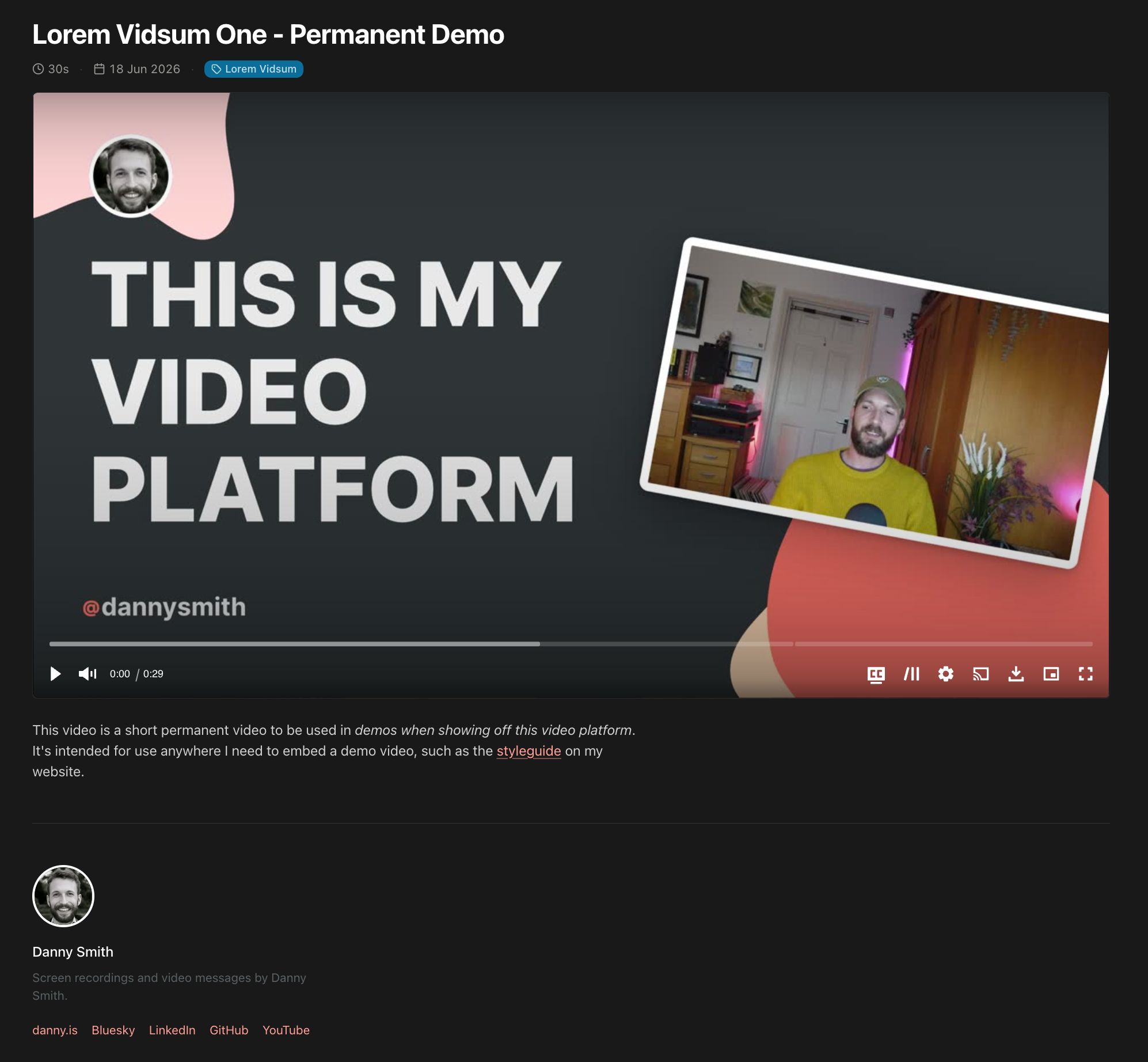
And when someone visits the public URL for the video they’ll see something like this, complete with subtitles, thumbnail, scrubber previews and the option to play lower-resolution derivatives.
There’s a lot I haven’t covered here – I’ll hopefully get to that in some more focussed articles in the future. If you’re interested in the details of all this the internal docs on GitHub might be of interest. Just bear in mind much of it was written by an LLM.
Footnotes
-
Because we keep these locally and know they failed, we can retry them later as part of the “healing” process. ↩